
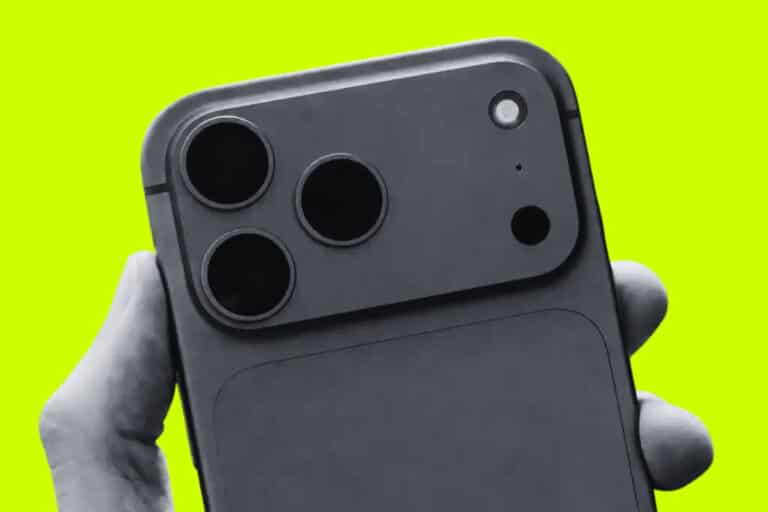
Will iPhone 18 Pro Max Be Worth The Wait? All The Potential Upgrades Detailed
The Short Version Is the iPhone 18 Pro Max Worth Waiting For? Yes, if you have an iPhone 15 Pro Max or…
Read more →KnowYourMobile guides
Stay ahead with the latest phone news and tech coverage, featuring the biggest and best brands including Samsung, Apple, OPPO, Huawei, OnePlus, RealMe, VIVO, and more. Our comprehensive updates cover everything from the latest phone leaks and new releases in wearables to the most exciting developments in smart home technology and beyond.
The newest and most useful posts from this section.
The Short Version Is the iPhone 18 Pro Max Worth Waiting For? Yes, if you have an iPhone 15 Pro Max or…
Read more →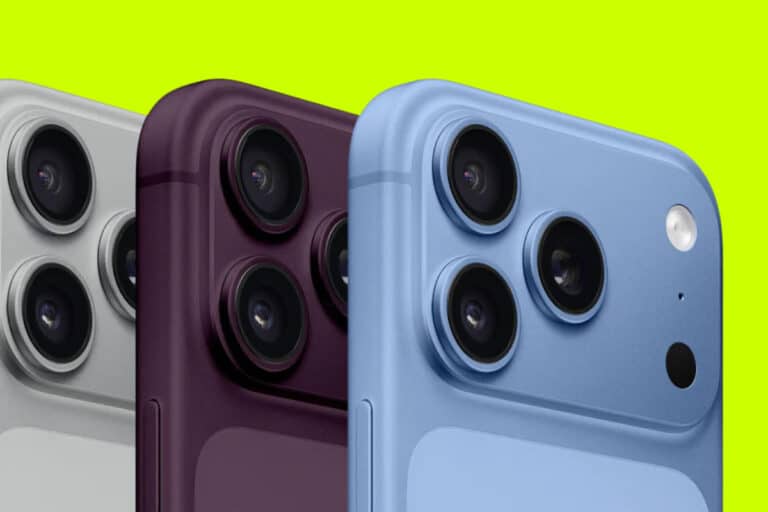
The Short Version iPhone 18 Pro Max Could Get a Mechanical Camera Apple is reportedly giving the iPhone 18 Pro Max a…
Read more →
The Short Version Samsung Galaxy S27 Pro Leak The Galaxy S27 Pro appears to be a new model, sitting between Samsung’s smaller…
Read more →News articles, guides, reviews, and updates.
Preorder and Release Guide When Do iPhone 18 Pro Preorders Open? Apple will unveil the iPhone 18 Pro and iPhone…
Read more →
Confirmed Launch Event When Is the iPhone 18 Pro Launching? Apple will officially unveil the iPhone 18 Pro and iPhone…
Read more →
📱 iPhone 18 — What We Know So Far iPhone 18: Release Date, Specs & Price — TL;DR Apple hasn’t…
Read more →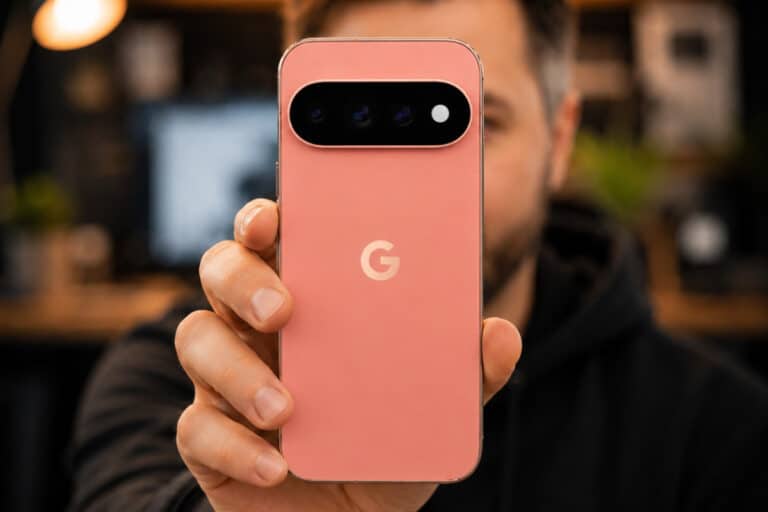
The Short Version Pixel 11 Features Compared Every Pixel 11 gets Google’s main AI tools, Tensor G6, Pixelsnap charging and…
Read more →
⚡ The Short Version The 12 Expected iPhone 18 Pro Upgrades Apple’s next Pro iPhones are expected to focus on…
Read more →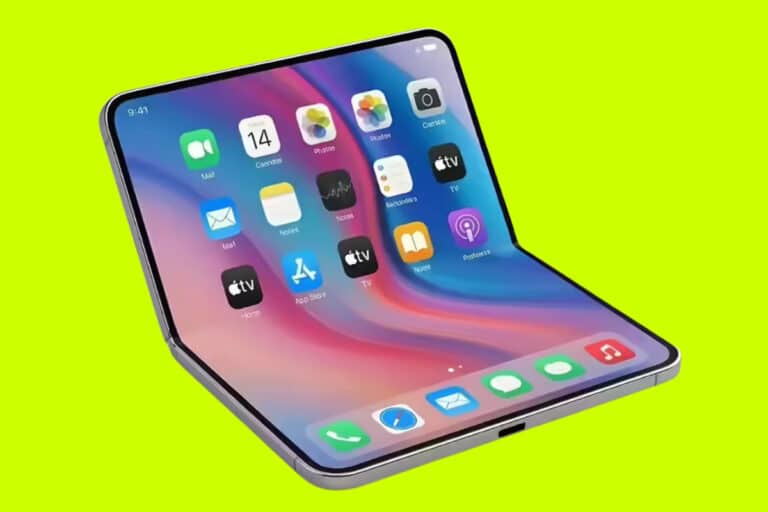
⚡ The Short Version iPhone Ultra vs iPhone 18 Pro Max Cameras The iPhone Ultra should provide the more interesting…
Read more →
📱 iPhone 18 Pricing — What’s Going On Why The iPhone 18 Could Be Apple’s Most Expensive iPhone Ever It’s…
Read more →
⚡ The Short Version iPhone Ultra Multitasking: What It Should Be Able To Do The folding iPhone is expected to…
Read more →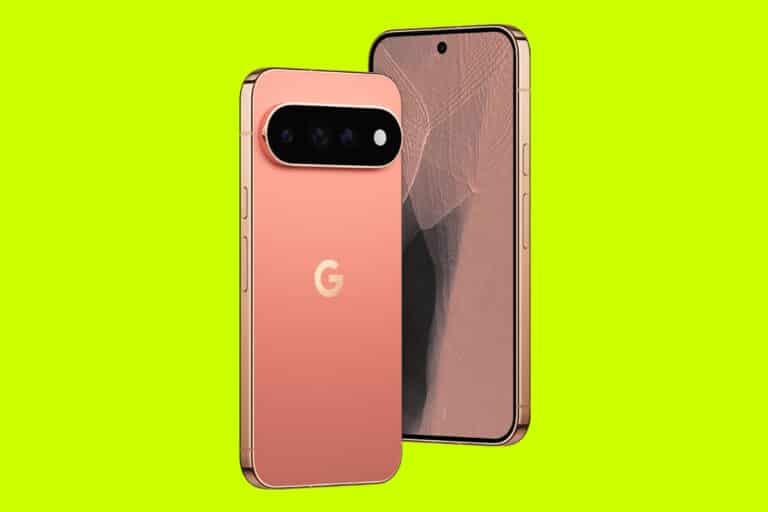
⚡ The Short Version Pixel 11 Pro XL Geekbench Scores Explained The Pixel 11 Pro XL is around 20% faster…
Read more →
⚡ The Short Version iPhone 18 Pro C2 Chip: What You Need To Know The C2 is Apple’s expected second-generation…
Read more →
⚡ The Short Version How Thick Will The iPhone 18 Pro Be? Earlier reports put the iPhone 18 Pro and…
Read more →
⚡ The Short Version Five New AirPods Features Coming With iOS 27 iOS 27 gives compatible AirPods more control over…
Read more →
⚡ The Short Version How Much RAM Will Each iPhone 18 Model Have? Apple’s iPhone 18 range is expected to…
Read more →
⚡ The Short Version Apple’s 2026/27 Product Roadmap Apple’s next major launch cycle is expected to start with the iPhone…
Read more →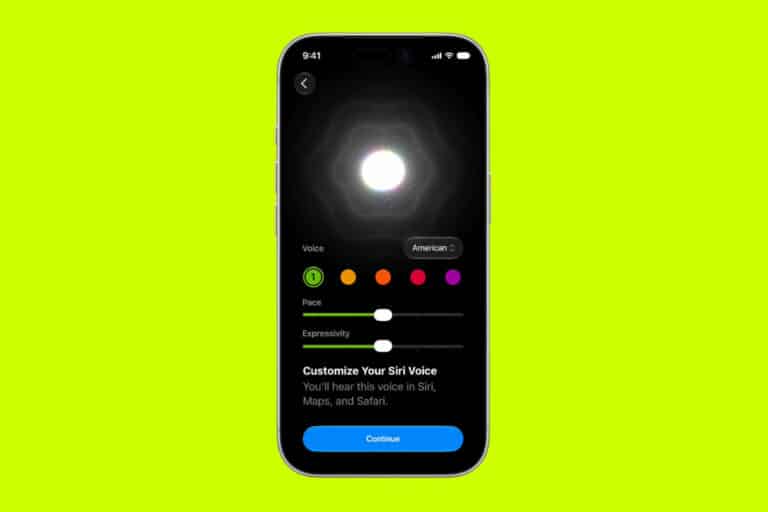
🧠 The Short Version Siri AI: What You Need To Know Siri has been rebuilt around Apple Intelligence. It can…
Read more →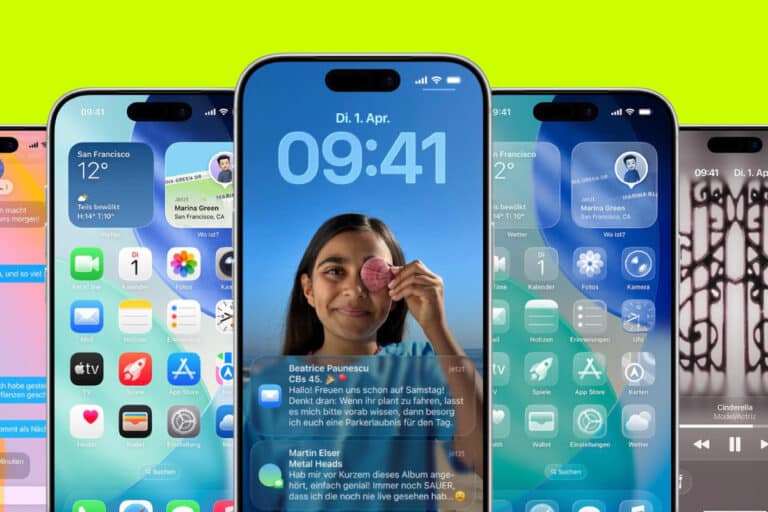
📱 The Short Version iOS 27: Release Date, Supported iPhones & New Features iOS 27 is available in developer and…
Read more →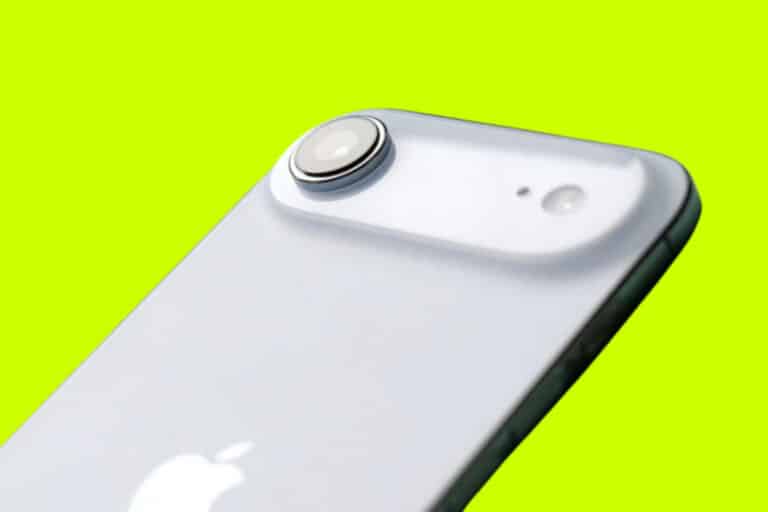
📅 The Short Version Apple’s Spring 2027 iPhone Line-Up Apple is expected to launch the iPhone 18, iPhone 18e and…
Read more →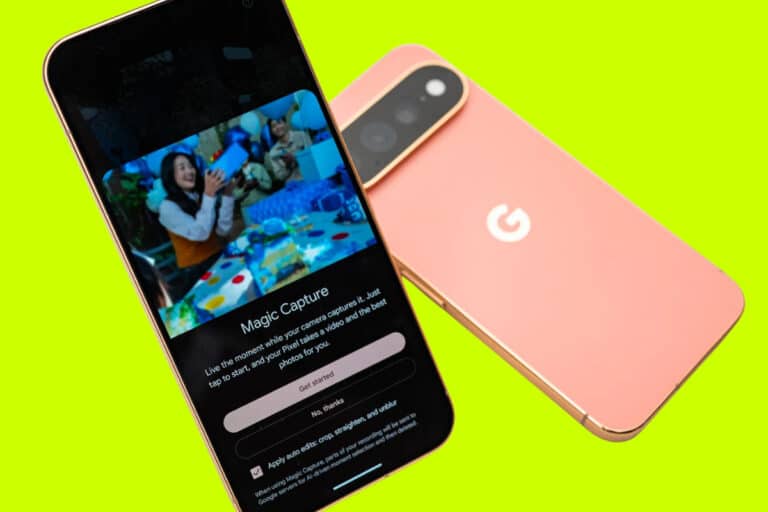
📸 The Short Version Magic Capture: What It Does On Pixel 11 Magic Capture records a short video, finds the…
Read more →
✨ The Short Version Gemini Intelligence: What It Actually Does Gemini Intelligence is Google’s new system-wide AI layer for Android.…
Read more →
⚡ The Short Version Tensor G6: What You Need To Know Tensor G6 powers every phone in the Pixel 11…
Read more →
📸 The Short Version Pixel 11 Cameras: Which Model Is Best? The Pixel 11 Pro and Pro XL have Google’s…
Read more →
⚡ The Short Version Pixel 11 Battery: What You Need To Know Google is promising longer battery life and faster…
Read more →
⚡ The Short Version Five Big Problems Facing Apple’s Folding iPhone Apple’s reported iPhone Ultra could be one of its…
Read more →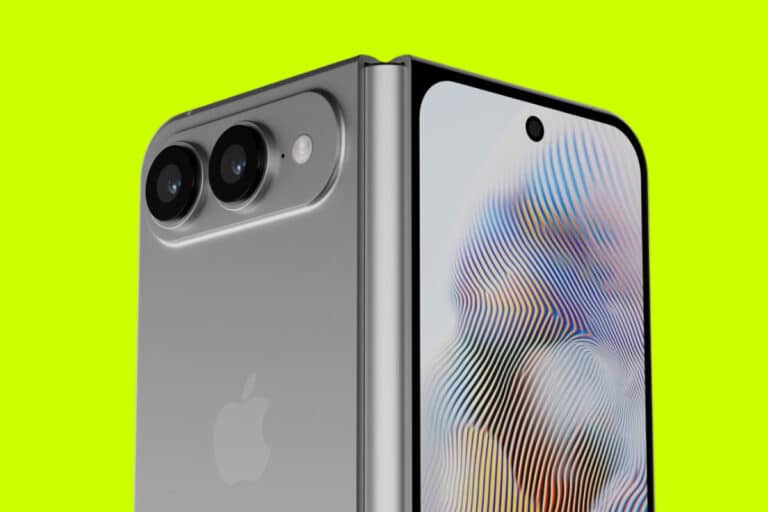
⚡ TL;DR — Apple’s First Folding iPhone Apple’s first folding iPhone is expected to be unveiled alongside the iPhone 18…
Read more →
📱 Folding iPhone — Price Leaks iPhone Ultra Price: What The Leaks Are Saying Right Now The folding iPhone —…
Read more →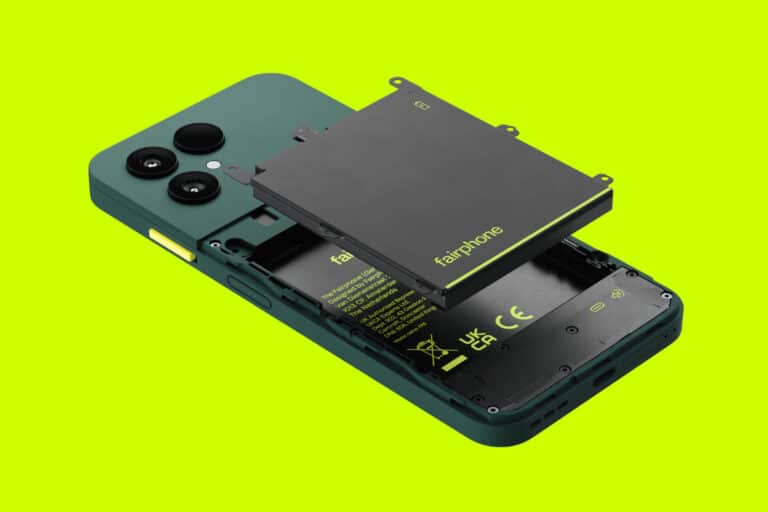
🛠️ Repair Costs — TL;DR Fairphone 6 Repair Costs: What Replacement Parts Actually Cost In The UK The Fairphone 6…
Read more →
🔋 The Short Answer The Fairphone 6 Is The Removable-Battery Phone I’d Buy Right Now There are other phones with…
Read more →
♻️ Fairphone 6 — Is It Worth It? The Fairphone 6: Something Of An Oddity — In The Best Way…
Read more →
📱 Pixel 11 — Official Google Pixel 11: Everything Announced On 12 August 2026 The Pixel 11 series is official.…
Read more →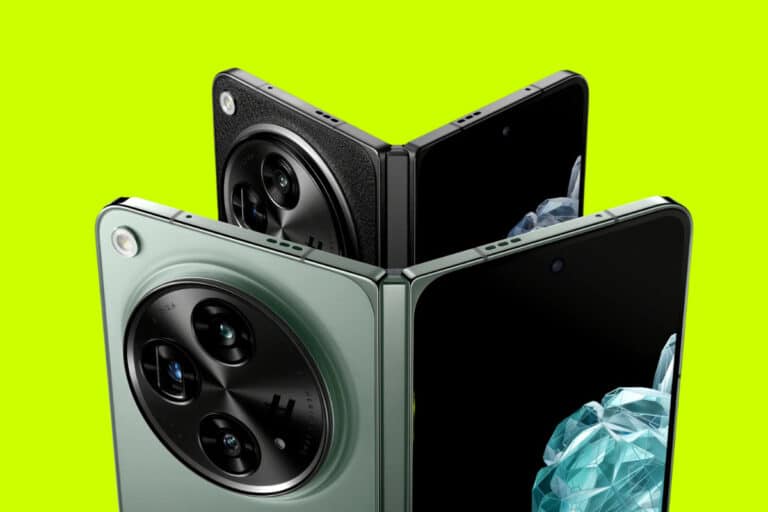
⚡ TL;DR — Best OnePlus Alternatives OnePlus has stopped launching new phones in North America and Europe. Here’s where to…
Read more →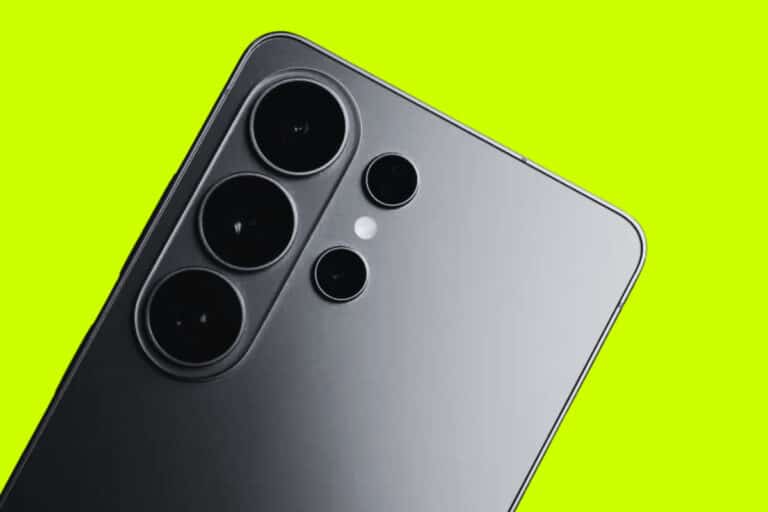
⚡ Galaxy S27 Series — The Short Version Samsung’s Galaxy S27 line is expected to grow to four models, with…
Read more →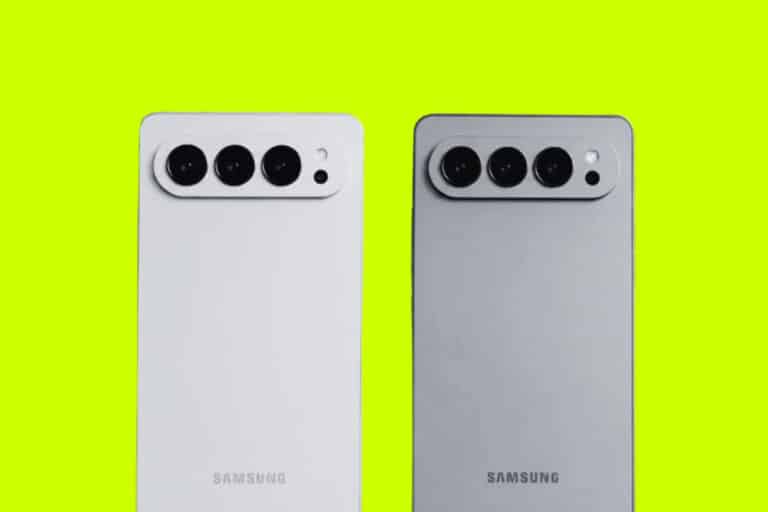
🔍 Galaxy S27 — What’s New & Why It Matters ← Scroll to see full table → New Feature Why…
Read more →
The Short Answer Galaxy S27 Pro vs Ultra — which should you buy? Buy The Pro If You want it…
Read more →
🛒 Pixel 9 Family — Specs, Prices & Deals ← Scroll to see full table → Phone Why It’s Good…
Read more →
🚨 Report Standard iPhone 18 reportedly delayed to 2027 According to comments made by one of Apple’s major suppliers, the…
Read more →
📱 iPhone 18 Alternatives Best iPhone 18 Alternatives You Can Buy Right Now For Much, Much Less The iPhone 18…
Read more →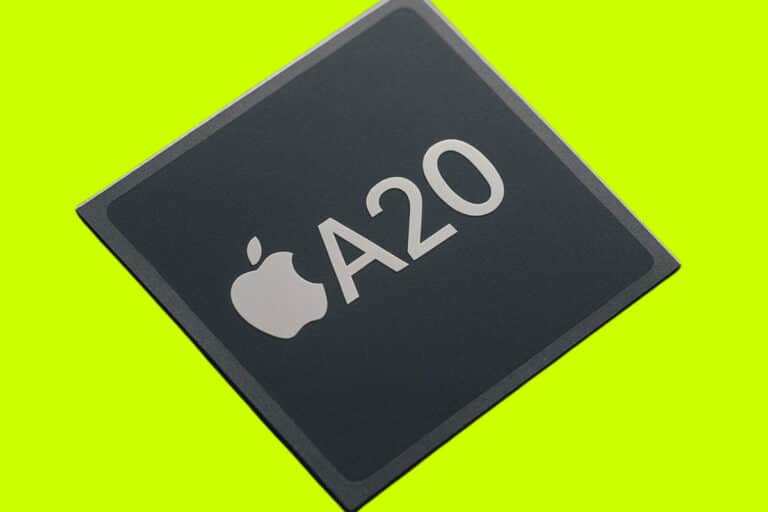
⚡ iPhone 18 — A20 & A20 Pro Chip Apple A20 & A20 Pro: What The 2nm Chip Actually Means…
Read more →
📸 iPhone 18 Pro — Variable Aperture Variable Aperture On iPhone 18 Pro: What It Means & Why It Matters…
Read more →
🍎 iPhone 18 — Full Generation Overview iPhone 18: Every Model, Release Window & What To Expect Apple is expected…
Read more →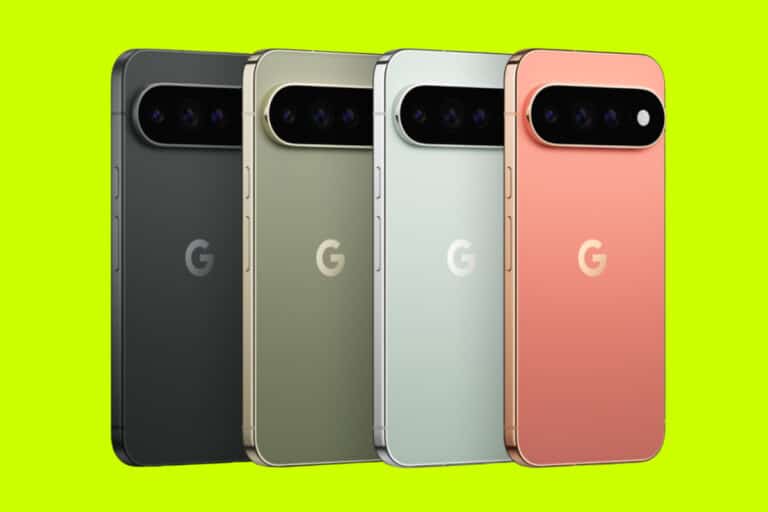
🎯 Pixel 11 — Best Deals Right Now Google Pixel 11 Deals: Get One Free With These Carrier Offers Several…
Read more →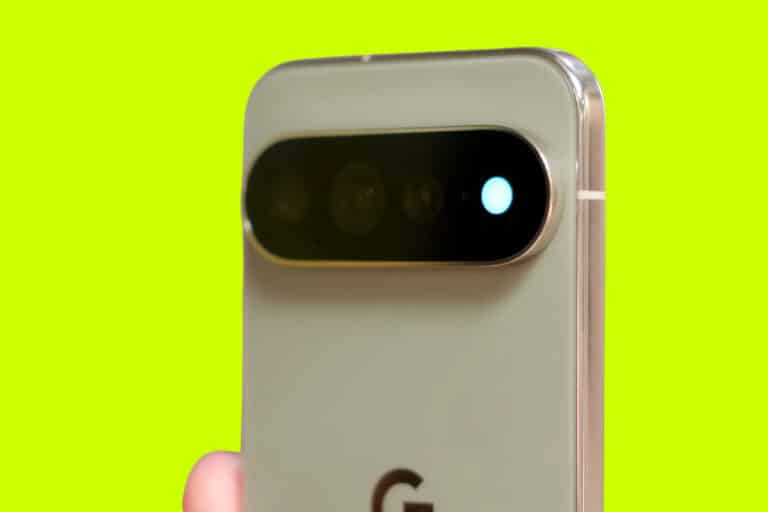
💡 Pixel 11 — HiLight What Is HiLight? The Pixel 11 Pro’s Notification LED Explained HiLight is an RGB light…
Read more →
📱 Pixel 11 — Which Should You Buy? Pixel 11 vs Pro vs Pro XL vs Pro Fold: The Differences…
Read more →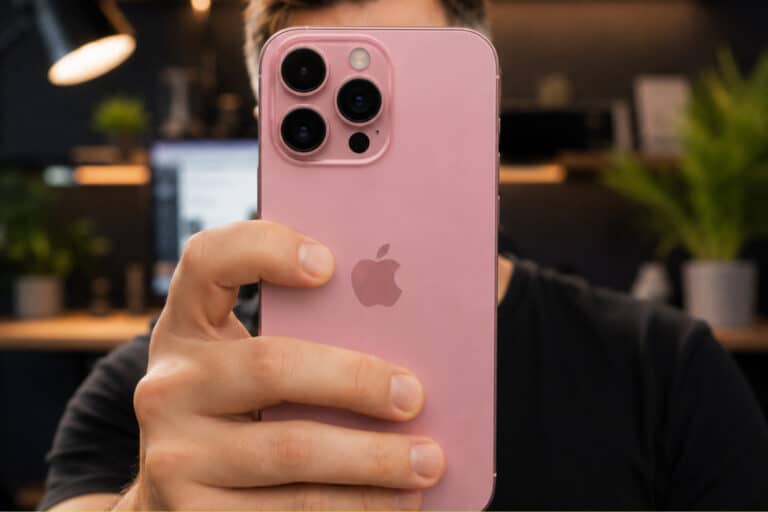
📐 iPhone 18 — Size & Display iPhone 18 Screen Size & Dimensions: What The Leaks Say Most of the…
Read more →
⚡ iPhone 18 — Charging iPhone 18 Charging Speed: What The Leaks Actually Say Faster charging is one of the…
Read more →
📸 iPhone 18 — Camera iPhone 18 Camera: What The Leaks Say So Far The biggest camera upgrade in years…
Read more →
🔋 iPhone 18 — Battery Life iPhone 18 Battery Life: What The Leaks Say So Far The Pro Max is…
Read more →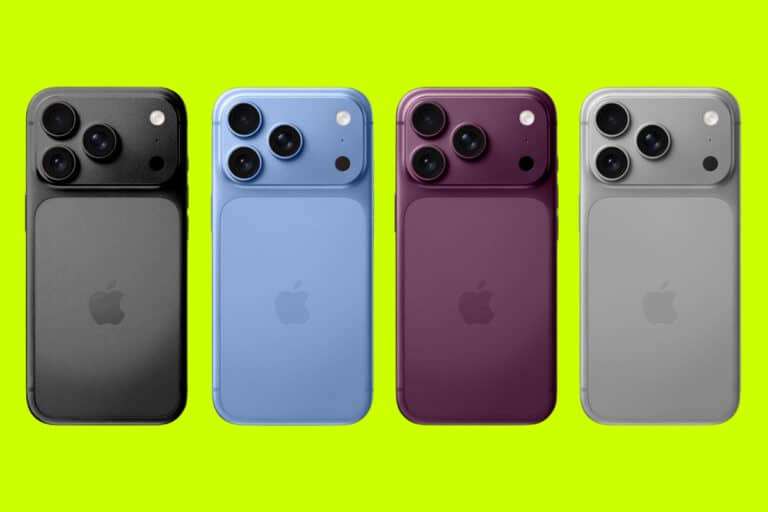
📅 iPhone 18 — Release Dates When Is The iPhone 18 Coming Out? Release Date TL;DR Apple hasn’t confirmed a…
Read more →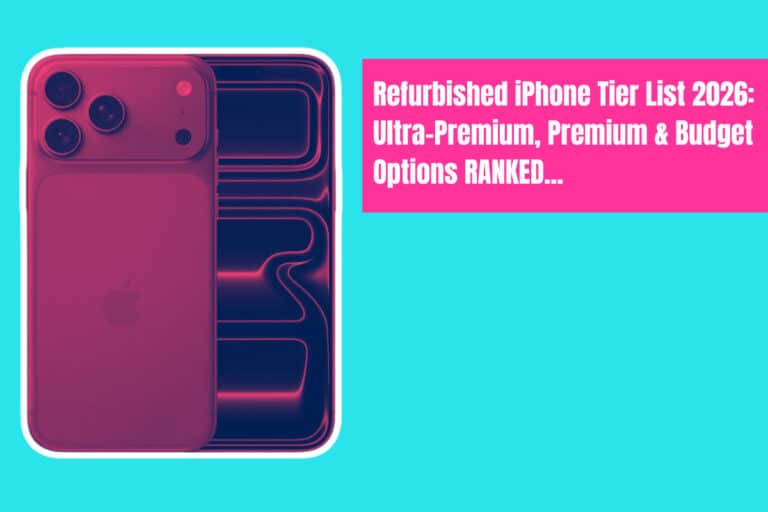
🛒 Browse All Refurbished iPhone Models — Live Deals ⚠️ iPhone 11 Era — Avoid Unless Budget Is Critical iPhone…
Read more →
📱 Refurbished iPhone 15 Guide How Much Does A Refurbished iPhone 15 Cost? A refurbished iPhone 15 costs hundreds less…
Read more →
TL;DR: “RAMageddon” To Make iPhones Way More Expensive Later This Year… Apple has confirmed significant price hikes across its Mac…
Read more →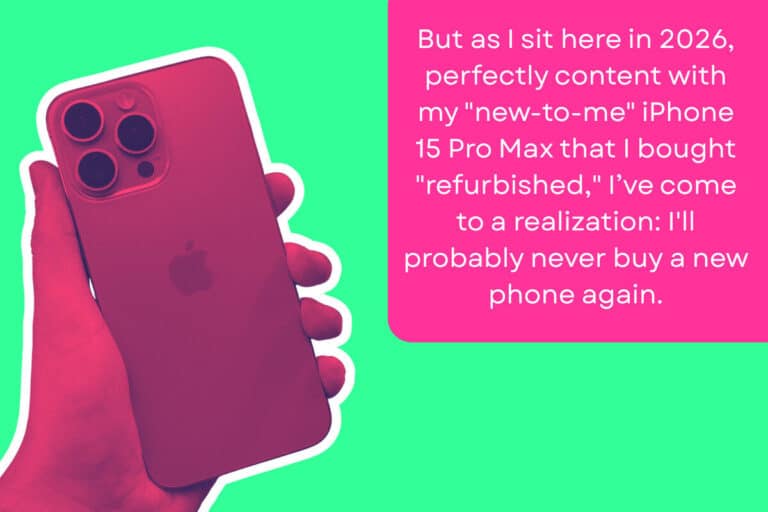
There was a time when the September Apple Event felt like Christmas. I’d watch the livestream, eyes glued to the…
Read more →
Americans spend a staggering $105 billion every year on smartphones. But what if a significant portion of those buyers stopped…
Read more →
TL;DR: Get Studio-Quality OnlyFans Content Without Spending £1,200 on a Phone You don’t need to spend £1,200 on a brand-new…
Read more →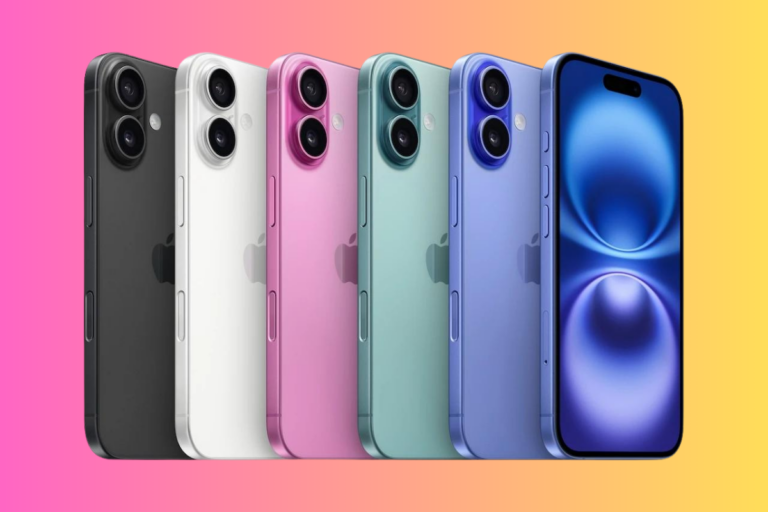
TL;DR – Which Refurbished iPhone 16 Is Best Value? The refurbished iPhone 16 256GB is the best value pick for…
Read more →
Why Software Updates Should Drive Your Buying Decision You wouldn’t buy a used car with six months of MOT left.…
Read more →
Every iPhone from the iPhone 7 onwards ships without a 3.5mm headphone jack. Apple removed it in 2016 and has…
Read more →
The iPhone 13 is not a new phone. But it is still a perfectly good phone. How do I know?…
Read more →