Is 256GB Enough For iPhone In 2026? My Advice + What To Avoid
TL;DR… 256GB is enough storage for most iPhone users in 2026. I like to think of it as the new baseline for…
Read more →
KnowYourMobile guides
Read expert guides on how to use mobile phones – from Apple’s iPhone to Samsung phones, as well as other major Android phones from brands like Huawei, OPPO, OnePlus, RealMe, VIVO, and more. We also cover tablets, how to use apps and software, and the best tips and tricks for using technology in general.
The newest and most useful posts from this section.
TL;DR… 256GB is enough storage for most iPhone users in 2026. I like to think of it as the new baseline for…
Read more →
TL;DR: What’s The Best Pixel Phone Size For Me? Google’s Pixel range spans from a compact 6.1-inch to a sprawling 8-inch foldable.…
Read more →
TL;DR: How Big Are iPhones These Days? Apple’s iPhones basically come in four size flavors, and none are what you’d consider small:…
Read more →User Guides articles, guides, reviews, and updates.
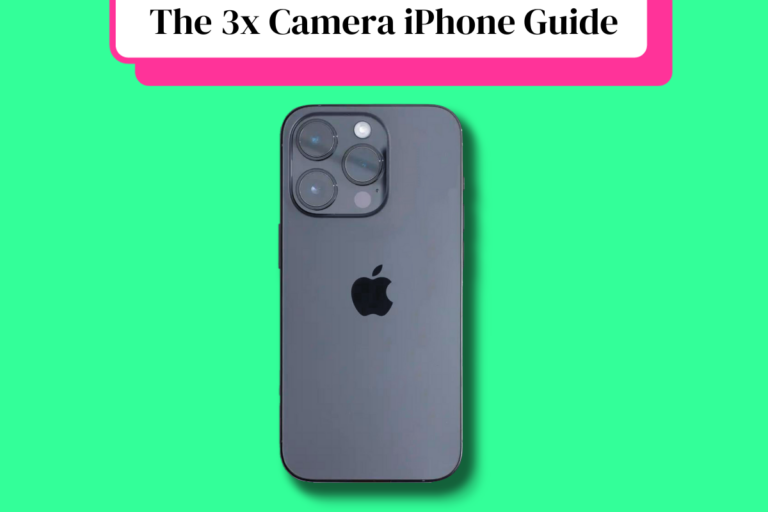
Every refurbished iPhone with three cameras is a Pro or Pro Max model. The triple-lens system pairs a telephoto lens…
Read more →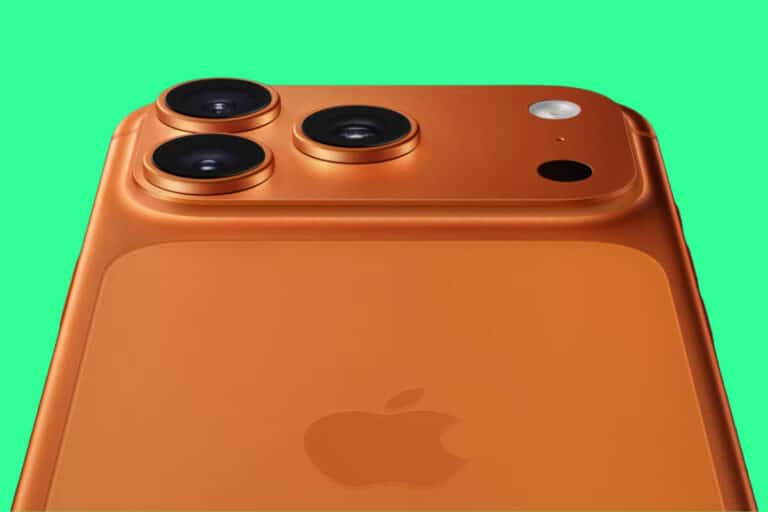
Which iPhones Have 5G? Every iPhone from the iPhone 12 (2020) onwards supports 5G. That includes every model in each…
Read more →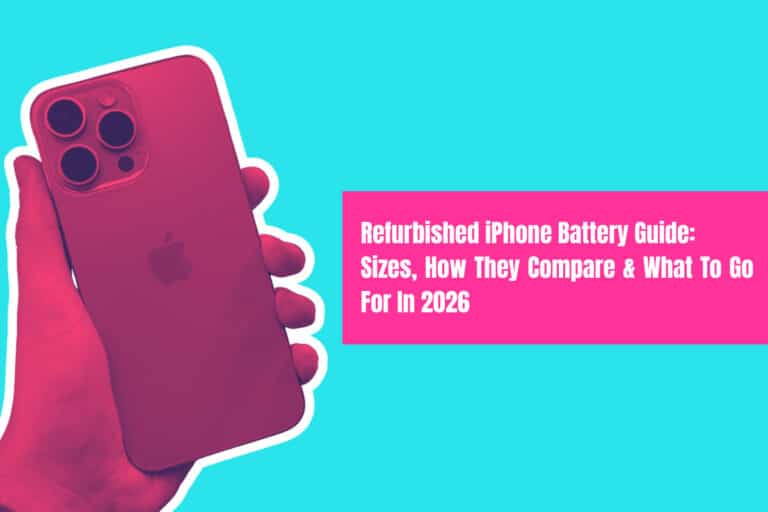
Which Refurbished iPhone Has The Best Battery Life? Best overall battery: iPhone 15 Plus The refurbished iPhone 15 Plus is…
Read more →
TL;DR – Steps You Need To Take To Get a Free Government iPhone Want a free iPhone? It’s possible if…
Read more →
Apple makes three versions of the Apple Pencil, and each works with a different subset of iPads. The compatibility rules…
Read more →
Which iPhones Have OLED Screens? Here’s The 2026 Low-Down… All modern iPhones use OLED displays but not all OLED is…
Read more →
If you want to get the best performance out of your iPhone 16 Pro Max camera, you NEED to know…
Read more →
Why The iPhone 11 Pro Max Was Discontinued When Apple released the iPhone 12 series in September 2020, both the…
Read more →
When choosing an iPhone, the most important question is not how much it costs today but how long it will…
Read more →
Whether you need an offline library for your commute or audio for a personal project, we’ve tested the top YouTube…
Read more →
If you’re looking to save big on your next smartphone purchase, refurbished phones are the way to go. They’re tested,…
Read more →
Spam texts used to be a minor annoyance; now they’re a full-time nuisance – and in many cases, a security…
Read more →
Unexpected things happen, so it’s always a better idea to be prepared. As an Apple device owner, the best you…
Read more →

If you want to get the best performance out of your Samsung Galaxy S24 Ultra’s camera, your going to need…
Read more →
If you want to get the best performance out of your Pixel 9 Pro XL’s camera, your going to need…
Read more →
Looking to unlock premium content, purchase new games, or grab in-game items? Razer Gold and Steam Cards are two of…
Read more →
Here’s a quick and simple guide covering how to set up voicemail on a Samsung phone – and, yes, it…
Read more →
Here’s a quick and handy list of all the file-sharing sites currently banned in the UK, including when they were…
Read more →
This Emoji meaning guide will show you emoji meaning to communicate your feelings and emotions in the right way… Emojis…
Read more →
Apple’s AirTags – what are they, how do they work, and is it worth buying one? Here’s everything you need to…
Read more →
Ever wondered how much bang for you buck you get with mobile data? Here’s EXACTLY what 10GB of data gets…
Read more →
In this guide, we’ll show you how to quickly activate your GiffGaff SIM card – this works for both Android and…
Read more →
Here’s how you can (and probably should) turn off Google’s AI Answers feature (also known as SGE) Google’s Search Generative…
Read more →
Whether you’re a gamer or a budding mathematician, you may be running into the acronym “RNG” a lot. What exactly…
Read more →
Here’s everything you need to know about how long your iPhone 13 will get updates for… The iPhone 13 Is…
Read more →
iPhones can shoot pictures in RAW format but Apple’s take on it is slightly different – it uses something called ProRAW.…
Read more →
What is Photographic Styles on iPhone? Here’s everything you need to know about Apple’s new approach to filters on iPhone……
Read more →
Free VPNs are dogsh*t, so DO NOT use them. They’ll infect your phone, share your data, and are basically a…
Read more →
The newly launched OnePlus Watch 2 comes in two stylish color options: Radiant Steel and Black Steel. Both finishes feature…
Read more →
The recently released OnePlus Watch 2 is the company’s second attempt at a smartwatch after the disappointing first OnePlus Watch.…
Read more →
The Android 15 preview is now available and, should you wish, you can download it and install it on your…
Read more →
Is the OnePlus 12 waterproof? Can it survive a dip in the pool, bath, or – worse still – the toilet? Here’s…
Read more →
The OnePlus 12 has a killer new display and it does come with a factory-fitted protector. But is it enough…
Read more →
In this guide, we explain EXACTLY what iPhone AirDrop is, how to use it, and how to transfer files safely…
Read more →
Here’s 10 actionable tips and tricks for extracting more battery life out of your Samsung Galaxy S24 series phone – all…
Read more →
NSFW means “Not Safe For Work” and it is usually attached to posts and content that you wouldn’t want to…
Read more →![Apple Watch Ultra Compatibility: Which iPhones Can It Be Paired With? [2024 Guide]](https://www.knowyourmobile.com/wp-content/uploads/2023/03/Apple-Watch-Ultra-compatibility-guide-768x512.png)
A guide to help users determine whether their existing iPhone or iPad is compatible with the Apple Watch Ultra and…
Read more →
Which MacBooks have ProMotion displays? Here’s a handy guide to all the MacBooks that currently come with ProMotion displays… Apple’s…
Read more →
It’s not about music FM or AM radio at all! Here’s what your need to know about ANT Radio Service.…
Read more →
If you’re having issues with your Sky Q box, one of the quickest ways to fix things is by resetting…
Read more →![Which iPhones Have MagSafe? A Complete Guide… [2024 Edition]](https://www.knowyourmobile.com/wp-content/uploads/2021/09/magsafe-2024-768x512.png)
If you’re thinking about getting an iPhone and you want MagSafe, here’s a quick guide on which iPhones have MagSafe…
Read more →
Does your credit card keep getting charged by Apple? Here’s how to deal with unwanted charges from Apple, check why…
Read more →
If you’re a proud owner of Apple’s AirPods, you’re in for a treat. These wireless earbuds are one of the…
Read more →
Google killed the back button in Android 12, so if you’re coming from an older Pixel phone, it might catch…
Read more →
If you’re thinking about investing in a Garmin watch, you might be wondering how long a Garmin watch actually lasts?…
Read more →
Most Garmin watches come with sleep-tracking abilities that rate your night’s sleep out of 100. But how do you get…
Read more →
How much can you spend using Apple Pay? As it happens, there is no fixed number – it varies by country.…
Read more →
In this guide, we’ll show you A) how to quickly set up Apple Pay, B) what Apple Pay can do,…
Read more →
If you’re looking to buy a Xiaomi phone and you live in the US, what are your best options when…
Read more →
Have a messy iPhone home screen? Here’s how to clean up the app clutter: organize iPhone apps using these tips!…
Read more →
Here’s the full list of the macOS operating systems in order – including Mac OS, Mac OS X, and macOS! The…
Read more →
NFTs have been around for a good long while but are now getting WAY more press than ever. But what…
Read more →
Step-by-Step Guide to Canceling Your OnlyFans Subscription - Don't Pay for Content You Don't Want!
Read more →
Wondering what Beeper is? You’re in the right place. Beeper is a universal chat app that’s changing the game in…
Read more →
Unlocking your AT&T Samsung Galaxy S5 can provide you with the freedom to use your device with any carrier, anywhere…
Read more →
Here’s the three main methods for taking screenshots on the Samsung Galaxy A03s, including the simplest and easiest option. Taking…
Read more →