 Skip to content
The #1 Best Samsung Phone Deals (ALL Models): Thousands of Offers…

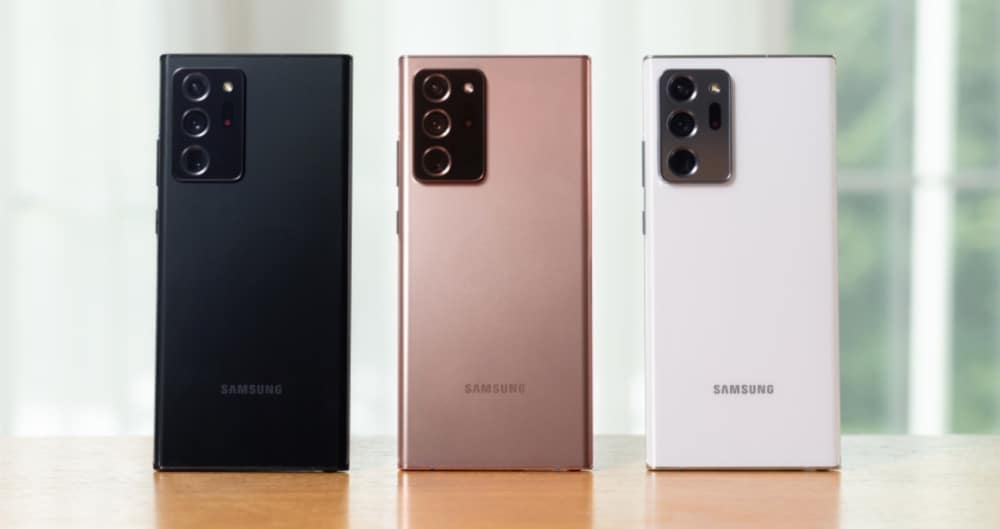
If you’re looking to pick up a Samsung phone, from the Galaxy Note 20 to the Galaxy S21, and everything else in between, we got you covered with the best deals from the biggest phone networks and carriers…
Best Samsung Phone Deals (ALL Models)
How To Find The Best Samsung Phone Deals
Samsung makes a lot of phones – from high-end devices like the Galaxy S20 to mid-range handsets like the Galaxy A51 5G which pack in plenty of specs and utilities, just for a much lower price tag.
For this reason, if you don’t know exactly what Samsung phone you’re looking for it is definitely worth using the tool above to see how deals for different Samsung phones compare. You might be surprised by just how much a difference slight variations in spec and hardware can make to the overall monthly cost.
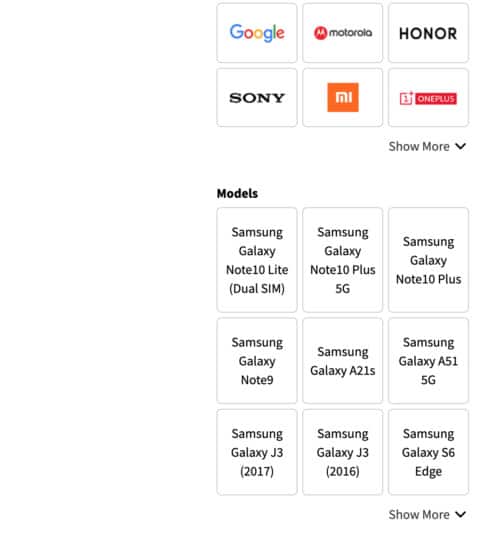
Using the tool above, you can search for all of Samsung’s latest releases. Just use the MODELS box selection tool. You can choose multiple models as well, so if you want to compare deals for the Galaxy S21 and Galaxy Note 10 Plus to see how they differ you can do this with ease.
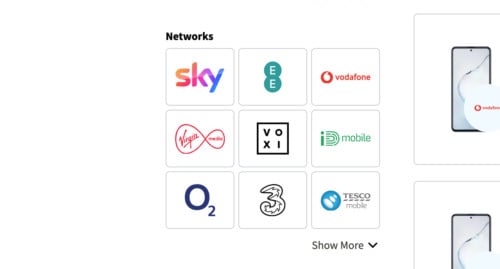
Below MODELS, you’ll see NETWORKS. Here, you can pull deals from specific networks, so if you’re with Three and you don’t want to move, you can select Three and it will ONLY show deals from Three.
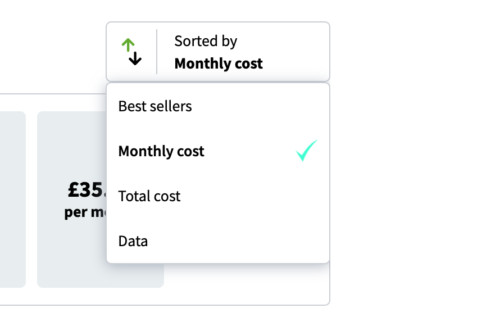
The deals generator tool is automatically set to aggregate all the deals by MONTHLY COST; this ensures that whatever comes out at the top is the best value for money. However, you can change it to show deals based on the best deal for data, current bestsellers, and total cost – basically, whatever you want.
You can also use the filters to set up maximum monthly costs, the amount you want to pay upfront, and how much data you want. Using the filters will help you lock-down the perfect deal for your exact needs, so we strongly recommend you take advantage of them!
Best Samsung Galaxy Note 20 Deals
In the next week or so, we’ll be updating our feed to pull in all the best offers and deals for the Samsung Galaxy Note 20 and Samsung Galaxy Note 20 Ultra, so if you’re interested in those phones, be sure to bookmark this page and check back once the Galaxy Note 20 range gets its UK and US release date.
How Much Data Do I Need?
When you’re getting a new contract, data is one of the most important things to consider – you’ll want to ensure you get plenty, as modern phones munch through data like nobody’s business. My general rule of thumb is as follows: never go below 10GB of data per month.
Ideally, you’ll want to go with data plans that offer anywhere from 10GB to 100GB per month. Unlimited data plans are ideal. They do cost a little more, but it is 100% worth it if you use your phone a lot – and with unlimited data, if you go with Three, for instance, you get unlimited tethering too which means you can use your phone’s internet connection on your peripherals – things like your laptop and tablet.
Should I Get A 4G or 5G Samsung Phone?
As you can see in the deals tool, there are now plenty of Samsung phones that run on 5G. If you want to future proof your purchase, so you can use the phone for years to come without having to upgrade, it is probably worthwhile going with a 5G Samsung phone.
5G will replace 4G as the de facto mobile data standard inside the next few years, bringing with it a raft of improvements such as ultra-fast web speeds, insanely quick download speeds, and improved connectivity. 5G is the future, basically, and buying a 5G phone in 2020 sets you up for where the market is going inside the next few years.