

iPhone 14 Review: The Case For Buying One In 2026…
📱 Refurbished iPhone 14 Guide Is A Refurbished iPhone 14 Still Worth Buying In 2026? Still a solid phone for texting, browsing,…
Read more →Reviews
Independent phone reviews and buying context, with a stronger focus on long-term value and whether older flagships still make sense.
The newest and most useful posts from this section.
📱 Refurbished iPhone 14 Guide Is A Refurbished iPhone 14 Still Worth Buying In 2026? Still a solid phone for texting, browsing,…
Read more →
With YouTube Premium, you get access to YouTube without ads as well as YouTube Music. But it is worth the cost? Let’s…
Read more →
Regular readers will know I’m a huge fan of refurbished tech. It’s better for the planet, it’s cheaper, and—most importantly—it keeps you…
Read more →Reviews articles, guides, reviews, and updates.
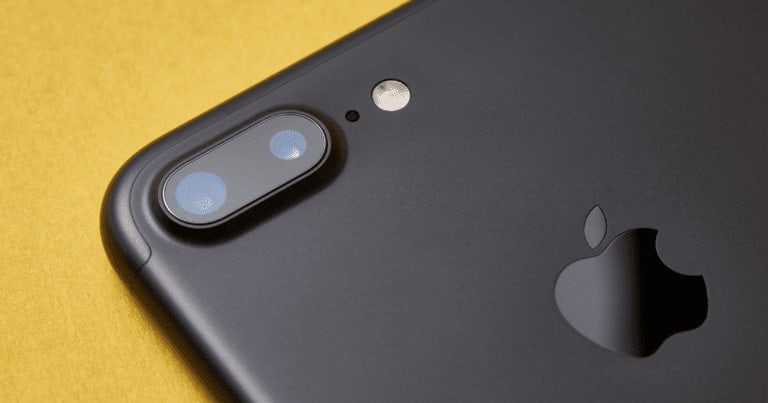
Is The iPhone 7 Still Worth It In 2025? The iPhone 7 and 7 Plus had their moment, but that…
Read more →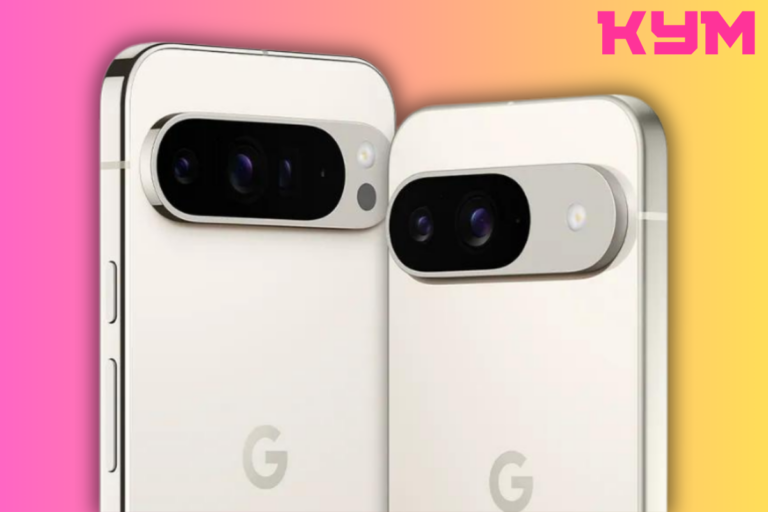
Is the Google Pixel 9 XL Pro the best Pixel phone you can buy right now? Here’s what the critics…
Read more →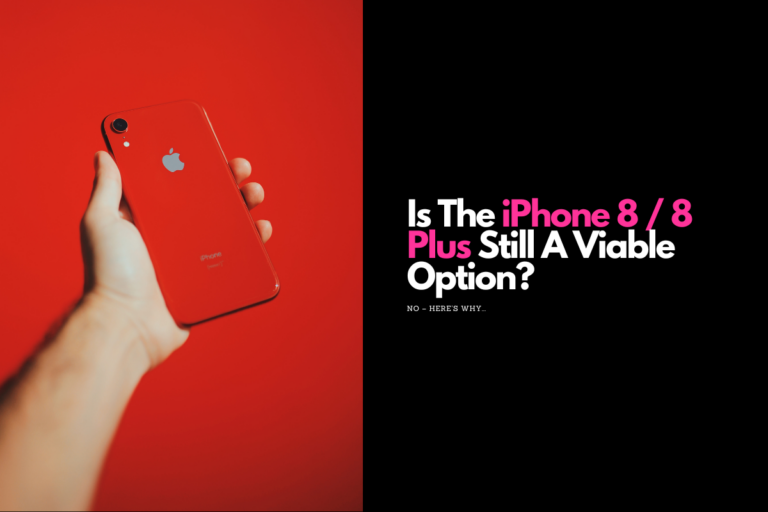
The iPhone 8 and iPhone 8 Plus signify the end of an era, the era of Apple’s Home button. But…
Read more →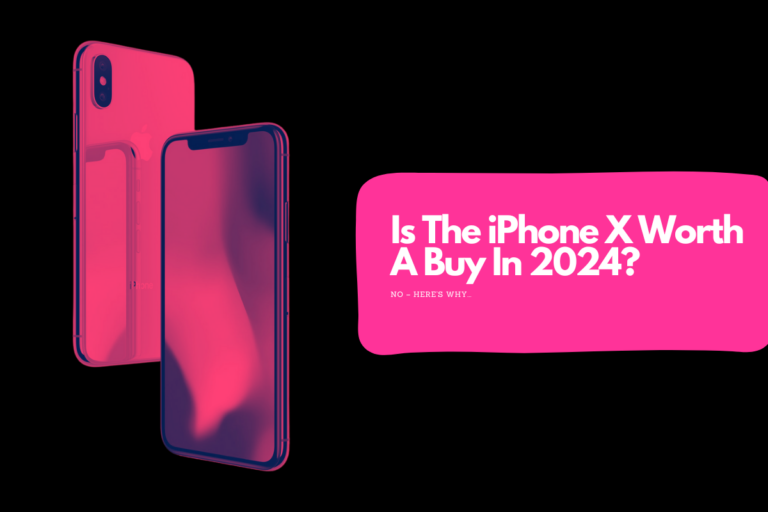
Is the iPhone X worth buying in 2024? Let’s investigate, shall we? Full iPhone X Review (Original Review From 2017) …
Read more →
Is the Google Pixel 7a a worthy update? Is it worth buying? Let’s take a look at what the Google…
Read more →
Is the OnePlus Watch 2 worth buying? Here’s everything you need to know about its performance, design, specs, and battery…
Read more →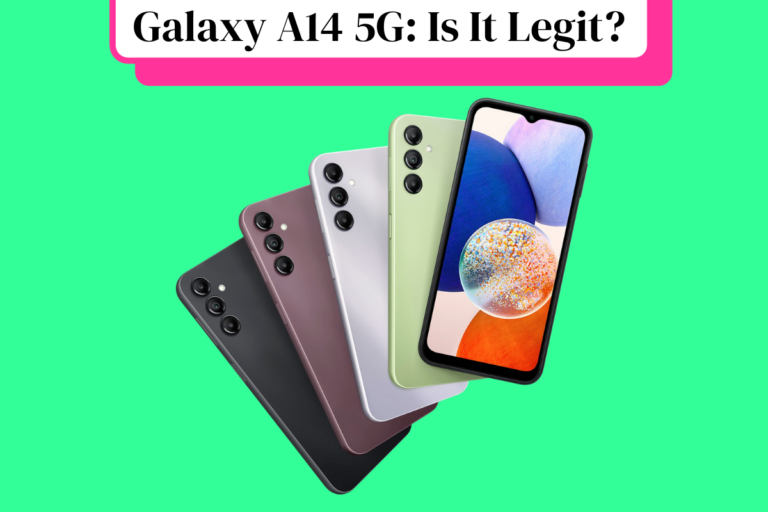
Here’s your complete overview of all the latest Samsung Galaxy A14 reviews from around the web. If you’re thinking about…
Read more →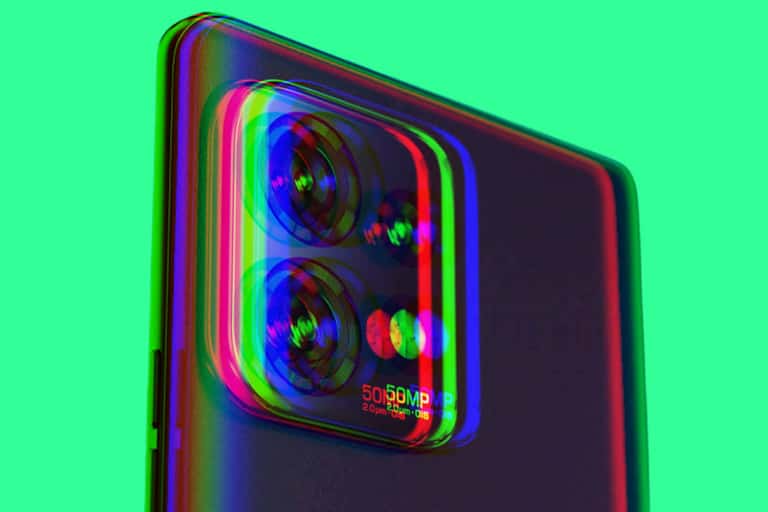
The Motorola Edge Plus 2023 is one of the best phones Motorola has designed in years, packing in bleeding-edge specs,…
Read more →
Apple’s iOS 16 is now available and it is one of the company’s best iPhone updates in years – here’s why……
Read more →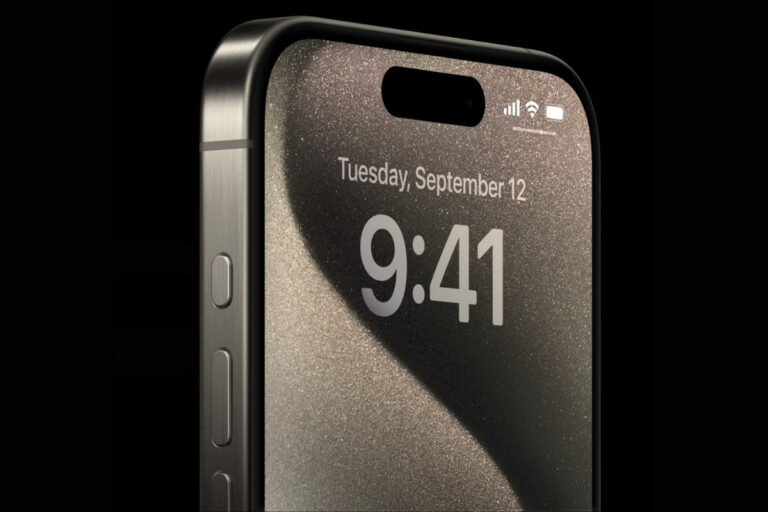
Apple’s iPhone 15 Pro has gotten some major upgrades including a new titanium frame, a USB-C port, and camera improvements.…
Read more →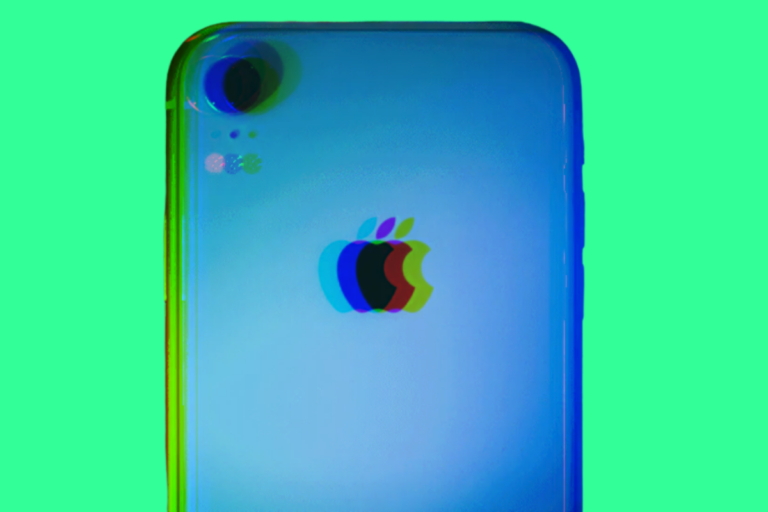
The iPhone XR was Apple’s best-selling phone to date for 2018 to 2020. But is the iPhone XR worth buying…
Read more →
In this Audible review, we’ll take a look at the pros and cons of Amazon’s audiobook service in order to…
Read more →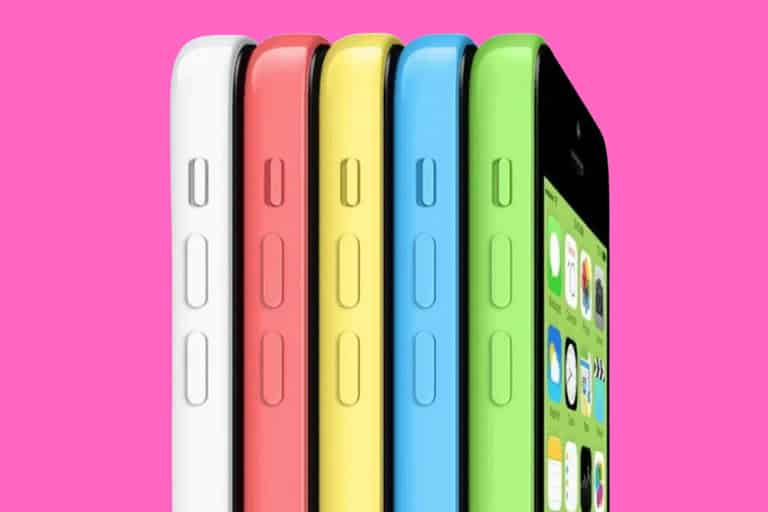
TL; DR: Is The iPhone 5C Worth Buying? Absolutely Not! The iPhone 5c has officially crossed the line from “budget…
Read more →
It’s a foldable phone and it runs a special version of Android. But is the Microsoft Surface Duo 2 any…
Read more →
In a world of $1000+ phones, the Samsung Galaxy A53 5G is pitched as the antidote to your woes, a…
Read more →
Apple’s iPhone 14 Pro Max isn’t only the best iPhone Apple’s ever made, but it also features the company’s best…
Read more →
Is the LG Ultrawide 40WP95C-W 2023’s best 5K monitor? Let’s take a quick look at some LG 40WP95C-W reviews to…
Read more →
Is Paramount Plus worth it? Here’s our hot-take on CBS’ new film and TV streaming platform. Is it as good…
Read more →
Apple’s new MacBook Air M2 is now official and the first slew of reviews are in – but is the MacBook…
Read more →
If you want to better secure your online accounts, the YubiKey 5C NFC is the quickest and simplest way to…
Read more →