
Here’s why and what to do when Apple Pay asks you to pay with a passcode…
“Why Does Apple Pay Say Pay With Passcode?” you may be wondering if you’ve recently tried to use Apple Pay but couldn’t complete the transaction because authentication by Touch ID or Face ID didn’t work.
This type of error happens more common than people think based on the number of online queries about it. To be sure it’s frustrating, but it’s usually an easy fix. But first, it’s important that you are using Apple Pay correctly on your iPhone, as incorrect usage can result in this error.
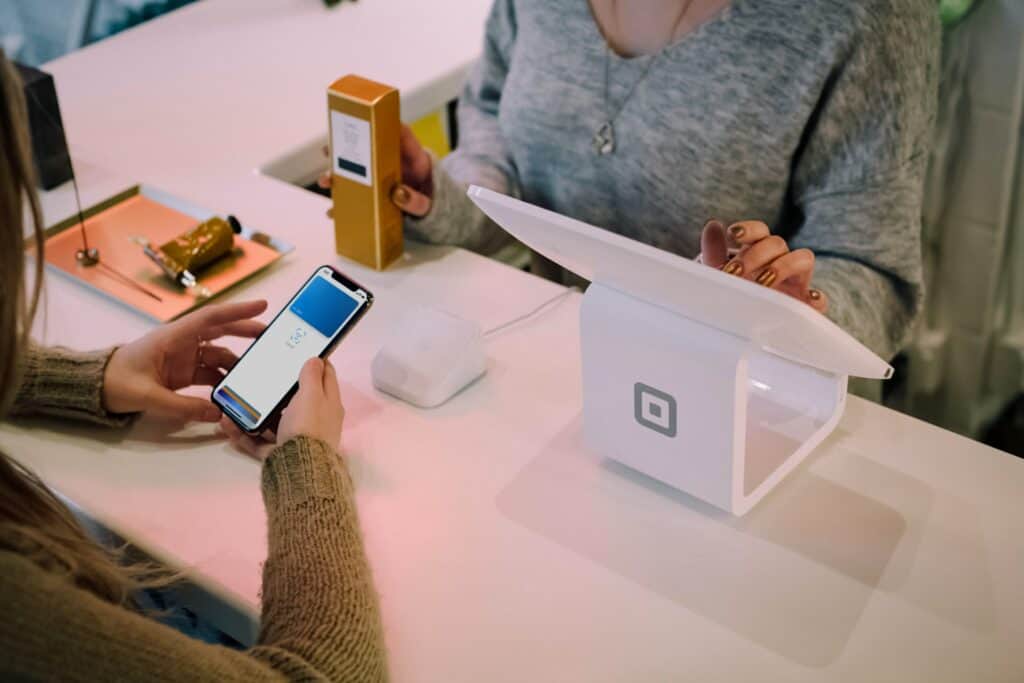
How To Use Apple Pay On An iPhone With Face ID
To use Apple Pay on an iPhone with Face ID, follow these steps. At a contactless purchase terminal that is asking you for payment, do the following:
- Double-click the Side button on your iPhone. This will launch Apple Pay.
- Authenticate your purchase with Face ID by holding the iPhone near your face.
- Now hold your iPhone close to the contactless reader. Make sure the top of your iPhone is nearest the contactless reader. After a second, you’ll hear a ding and see a checkmark on your screen, which means payment by Apple Pay was completed successfully.
Top-rated refurbished phone deals right now
These are the refurbished phones we currently recommend the most.
Compare 900+ refurbished phones →How To Use Apple Pay On An iPhone With Touch ID
To use Apple Pay on an iPhone with Touch ID, follow these steps. At a contactless purchase terminal that is asking you for payment, do the following:
- Rest your finger on your iPhone’s Touch ID. But do NOT press the Touch ID button–just rest your finger on it.
- Now hold your iPhone close to the contactless reader. This will launch Apple Pay. Make sure the top of your iPhone is nearest the contactless reader. After a second, you’ll hear a ding and see a checkmark on your screen, which means payment by Apple Pay was completed successfully.
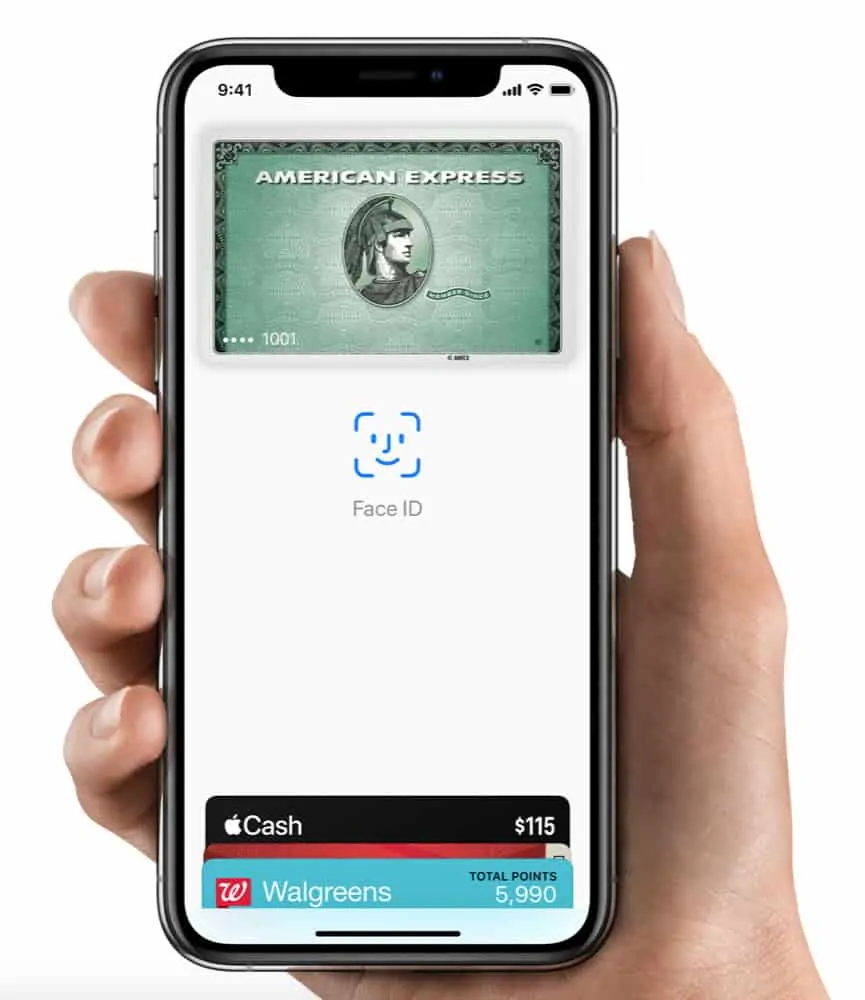
Things That Could Make Apple Pay Ask You For Your Passcode
If you’re sure you’re using Apple Pay correctly above based on your Face ID or Touch ID-enabled iPhone, then the pay with passcode prompt usually happens for a few reasons.
- On Face ID iPhones, the error can be because Face ID can’t get a good read of your face. This could happen if you aren’t holding the iPhone up to your face at the correct angle. But it can also happen if you are wearing a face mask. If so, you’ll need to remove your face mask briefly so your iPhone can authenticate your face. (Alternately, just pay with your passcode if you don’t want to lower your face mask).
- On Touch ID phones, the pay with passcode prompt can happen when Touch ID can’t read your fingerprint. Make sure as much as your finger is on the Touch ID sensor as possible. Also, obviously, make sure you are touching Touch ID with the correct finger (the one you have registered to Touch ID. Finally, it’s possible your finger may be dirty, so give it a wipe to clean it.

You’re paying too much for data. Way too much.
Visible+ gives you unlimited premium data on Verizon’s 5G Ultra Wideband network, plus hotspot data and travel perks.
Compare top-ranked plansVisible+ includes
- Unlimited premium dataVerizon 5G Ultra Wideband
- Unlimited hotspot dataSpeeds up to 15 Mbps
- Travel extrasCanada and Mexico coverage, plus 2 days of Global Pass each month
Make Sure Apple Pay Is Actually Turned On For Touch ID and Face ID
This is something you want to check also–some people have reported that they are getting the pay with passcode prompt because Touch ID and Face ID have been turned off for Apple Pay. If this happens, the only way you can authenticate an Apple Pay payment is with your passcode.
To make sure Apple Pay has access to Touch ID and Face ID, do the following:
- On your iPhone, open the Settings app.
- Tap Face ID & Passcode or Touch ID & Passcode (depending on your iPhone model).
- Enter your iPhone’s passcode.
- Under: “Use Face/Touch ID for” make sure Wallet & Apple Pay is ON (green).
Check out How To Add Your Apple Account Card To iPhone Wallet App!
Keep reading
More useful guides from this section of KnowYourMobile.
