- I Really Like Gemini For Helping & Developing Content Strategy & Ideas
- Gemini CLI Is My Go-To Tool For Content Repo Management
- I Use Gemini Code Assist In VS Code For Website Work
- Gemini CLI And VS Code Work Together
- I Connected CLI To Notion And WordPress Using MCP
- I Use CLI For Content Repo Management
- I Built Custom Workflows For Repetitive Tasks
- What I’ve Learned About Using CLI As A Creator
I’ve been testing Google’s Gemini ecosystem for the past few months because, like many, I’ve grown tired of ChatGPT’s flakiness. I use it for lots of things but mostly it helps manage my content pipeline better, and automates tasks I used to do manually.
Here’s exactly how I’m using Gemini as a creator, broken down by the specific tools I’ve integrated and what they actually do for me.
I Really Like Gemini For Helping & Developing Content Strategy & Ideas
The basic Gemini chat interface is where I start most days. I use it for topic research, drafting outlines, and generating initial versions of blog posts and scripts.
I also use it to repurpose content.
After I finish a long-form article, I paste it into Gemini and ask it to create an email version, social media posts, and a condensed summary.
This takes me about five minutes instead of an hour. The output isn’t perfect, but it gives me a solid first draft I can refine quickly.
For SEO work, I use Gemini to brainstorm keywords, suggest internal linking opportunities, and draft meta descriptions. I also run inside CLI with Python (but that’s more on the technical side). It’s faster than doing this manually, and the suggestions are usually relevant enough that I only need to tweak them slightly.
Gemini CLI Is My Go-To Tool For Content Repo Management
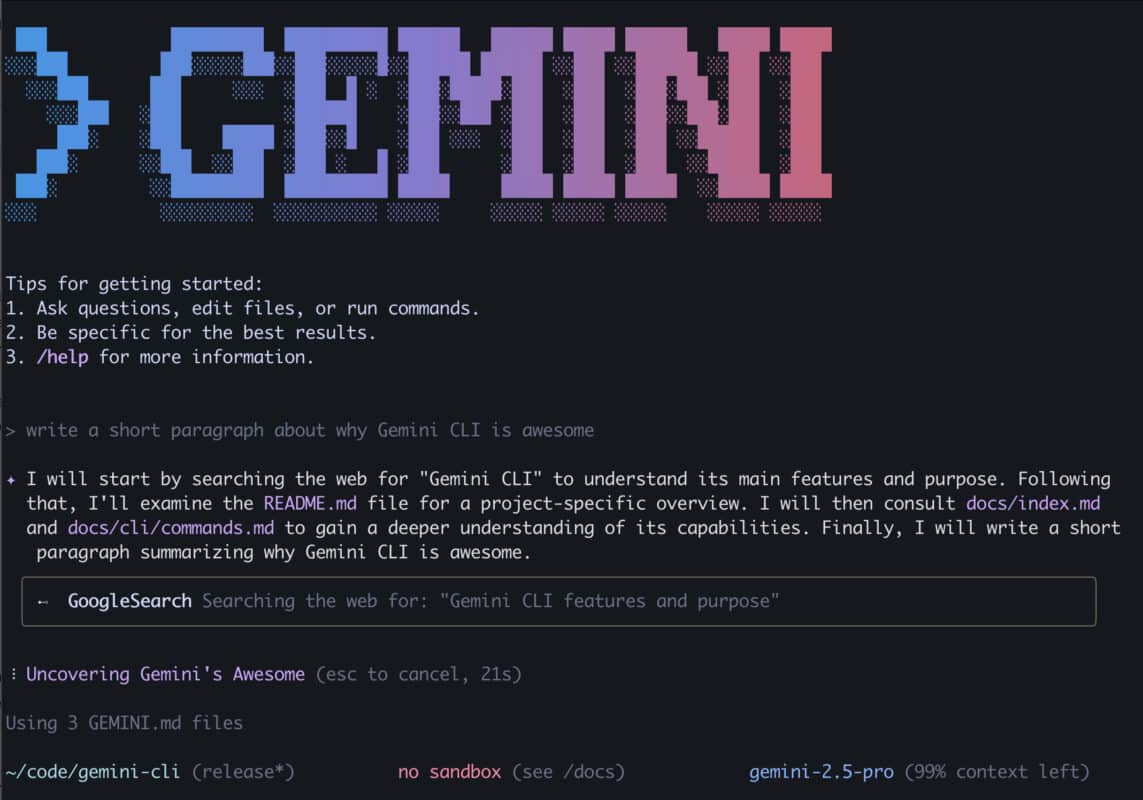
Gemini CLI is where things get more technical, but it’s become one of my most-used tools. I installed it on my Mac, linked it to my Google account, and pointed it at my content repository (Obsidian), a folder full of markdown files, blog drafts, and scripts.
I use Gemini CLI to search across my entire content archive. If I need to find every article I’ve written about refurbished phones, I run a query through CLI instead of manually scrolling through folders. It pulls up relevant files instantly and can even summarize themes or suggest updates to outdated content.
I’ve also used it to batch-generate outlines. I keep a spreadsheet of article ideas, and I can feed that list to Gemini CLI and have it create starter drafts for multiple posts at once.
The quality varies, of course, but these are just starting points, drafts. Something to get the creative juices flowing. It does save me hours of staring at blank pages, and I’ve noticed it helps with writer’s block too.
One of the most practical uses I’ve found is automating file management. I asked Gemini CLI to write a Python script that renames my image files based on a consistent naming convention.
It wrote the script, I ran it, and it cleaned up hundreds of files in seconds. I’m not a developer, but CLI makes this kind of task accessible.
You just open up VS Code, start a new project, and call in Gemini CLI (once you have it installed) simply by typing Gemini in that project’s terminal, then you just tell it what you want to do in natural language, and it makes the script for you.
I’m no Python developer but I’ve used Gemini CLI in VS Code to create loads of useful, little Python scripts that automate things for me.
I Use Gemini Code Assist In VS Code For Website Work
I maintain my own website and build small tools for tracking content performance. Gemini CLI runs inside VS Code, as noted above, and this has made “coding” way more approachable.
If you have lots of ideas or like building things, try out Gemini CLI in VS Code.
You don’t need to know how to code, Gemini does that bit, you just need to direct; and the more you do it, the more you learn about building scripts and micro-tools.
I also use Gemini CLI and MCP functionality to build and update landing pages in WordPress.
When I need to change a pricing section or add a new opt-in form, I describe what I want, and Gemini (via MCP) generates the HTML and CSS and updates my site.
I review it, make minor adjustments, and nine times outta ten it’s good to go without any tweaks necessary because I’ve built out a detailed “rules” file that it can reference.
This process used to require either hiring someone or spending hours in documentation.
I’ve also used it to add features to my post templates. I wanted a “reading time” indicator on each post, and Gemini wrote the entire component for me.
I tweaked the styling, but the functionality worked immediately. It can also design custom blocks for WordPress too, and access and edit the database.
Gemini CLI And VS Code Work Together
When I’m building a script to automate content uploads to WordPress, I use CLI to generate the initial logic.
I can see the code in VS Code, test it, and then ask CLI to refine specific sections or add error handling.
The workflow feels natural because I’m not switching between multiple apps—everything happens in the terminal and editor I already use.
I Connected CLI To Notion And WordPress Using MCP
The real power came when I started using Model Context Protocol (MCP) to connect Gemini CLI to the tools I actually use.
MCP lets CLI talk to external services like Notion, WordPress, GitHub, and custom APIs through plugins.
I set this up once, and now I can automate tasks that used to require multiple manual steps.
I connected CLI to my Notion workspace where I track article ideas and editorial calendars.
Now I can ask Gemini to pull upcoming topics from a specific Notion database, generate outlines for each one, and save them back to Notion as new pages.
I used to do this manually by copying topic titles, opening new pages, and drafting outlines one by one. Now it’s a single command in the terminal.
I also set up a WordPress connection through MCP. When I finish an article in my local markdown files, I can ask CLI to format it for WordPress, upload it as a draft, add the correct categories and tags, and even generate a meta description.
I still review everything before publishing, but the upload and formatting process is automated. This saves me at least 15 minutes per post.
I Use CLI For Content Repo Management
I point Gemini CLI at my content repository, I use Obsidian, and I have a vault full of markdown files, blog drafts, and scripts.
Now I can search across my entire archive without manually scrolling through folders. If I need to find every article I’ve written about refurbished phones, I run a query through CLI and it pulls up relevant files instantly.
It can also summarize themes across multiple posts or suggest updates to outdated content.
I’ve used CLI to batch-generate outlines. I keep a spreadsheet of article ideas, and I can feed that list to CLI and have it create starter drafts for multiple posts at once.
The quality is pretty terrible but it’s a good starting point that ensures all the main semantic entities are covered.
Plus, I hate staring at blank pages, and the basis for all of my content-focused notes are all original ideas and musings I’ve logged about things.
One of the most practical uses I’ve found is automating file management.
I asked Gemini CLI to write a Python script that renames my image files based on a consistent naming convention.
It wrote the script, I ran it, and it cleaned up hundreds of files in seconds. I’m not a developer, but CLI makes this kind of task accessible.
I Built Custom Workflows For Repetitive Tasks
Once I understood how MCP worked, I started building small custom workflows for tasks I do repeatedly. I created a routine that watches my “Ready to Publish” folder in my content repo.
When I drop a finished markdown file there, CLI reads it, converts it to WordPress-ready HTML, uploads it as a draft, and sends me a notification with a link to review.
I set this up using a simple bash script that calls CLI, and it runs whenever I need it.
I built another workflow for syncing my newsletter archive. After I send a newsletter through my email platform, I save the text as a markdown file. It picks it up, formats it, and adds it to a Notion database where I track all past newsletters.
This keeps my archive organized without manual data entry.
What I’ve Learned About Using CLI As A Creator
This setup required some upfront effort. I spent a few hours installing CLI, linking my Google account, configuring MCP connections to Notion and WordPress, and writing a few custom scripts.
But once that was done, the daily time savings have been significant. I estimate I’m saving at least two hours per day on tasks that used to be manual.
I also use Claude too; it is currently the industry-standard for this kind of thing. But it is hella expensive, whereas Gemini has a very generous free tier (you can do most of everything I’ve talked about in this post without paying a penny to Google).
I’ve also learned that Gemini (like all LLMs) works best when you give it clear, specific instructions.
Vague requests like “improve this content” produce generic results. But if I say “read this draft, tighten the intro, remove passive voice, and format it for WordPress,” the output is accurate and useful.
Always lead with original ideas or your own spin on something; the days of cookie-cutter content are gone.
Keep it personal and to the point and use Gemini to tighten things up, spot any holes or gaps in your logic.
I’m not using Gemini for everything. I still write, edit, and make final creative decisions manually. And Claude is currently my number one right now. But Gemini is definitely a close second; it runs rings around ChatGPT.
If you do a lot of file management, content formatting, API interactions, and workflow automation, Gemini and Gemini CLI is well worth checking out. You can do a lot of cool stuff without ever paying any money, so it’s well worth the time investment.
Buying tools
Thinking About Buying a Google Pixel?
Compare current refurbished prices, see how it stacks up against alternatives, and avoid overpaying for the wrong model.
Recommended for this article