 Skip to content
Phones
All the latest mobile phones compared from Apple’s iPhone to Samsung’s Galaxy and everything else in between – including OPPO, Xiaomi, Huawei, RealMe, VIVO, OnePlus, and more. Read detailed breakdowns of phone specs, updates, and the latest information on release dates and pricing.
We also have guides to the best Android phones and the best Android phones under £300 – if you’re looking for something cheaper. Need an iPhone and unsure which model is right for you? Use our Best iPhone Guide: Which Model is Right For You?
For the latest prepaid phone news as well as detailed insight and advice on the best plans and carriers, you’ll find everything you need right here. Whether you’re looking to go with a big carrier like Verizon or a smaller MVNO like Google Fi or Mint Mobile, we got you covered.

How Much Is Your iPhone Worth? Find Out…
Looking to sell your iPhone? Wondering how much it is worth? Use this tool to get a price guide on how much you could get for your current iPhone H...
iPhone 15 Specs Comparison: How Each Model Compares
Here’s a straight-up specs comparison of the iPhone 15, iPhone 15 Plus, iPhone 15 Pro, and iPhone 15 Pro Max. Which is best? Use the comparis...
iPhone Weight Comparison: All Models Compared
How much does an iPhone weigh? Apple has made a lot of iPhones since 2007 and this post will show you how much each model weighs, including the iPh...

GrapheneOS 101: What You Need To Know
Edward Snowden loves it. It is insanely secure. But it is worth switching to over standard Android? Here’s everything you need to know about ...

Samsung Phone Sizes & Dimensions Compared (All Major…
All the latest and best Samsung phones are compared in one place. Which is the biggest Samsung phone? Read on… Samsung offers a wide range of sma...
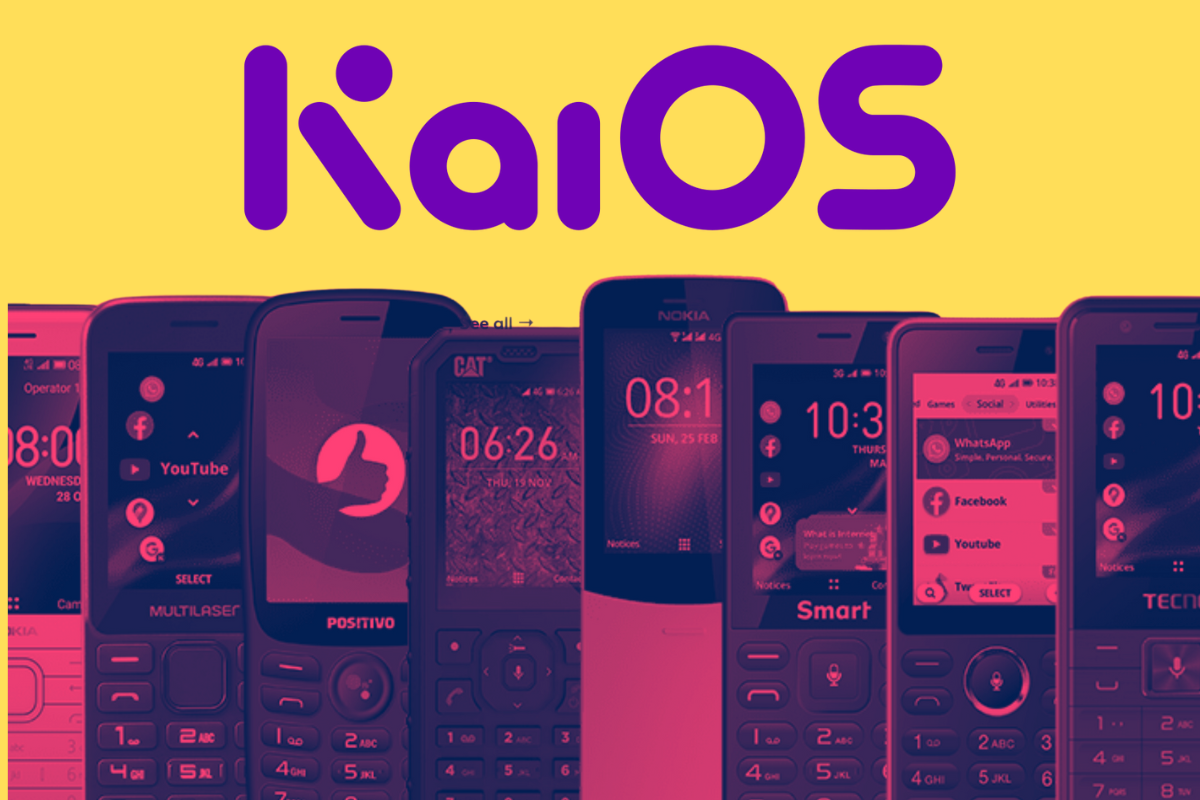
What is KaiOS? A Complete Beginner’s Guide [2024]
Here’s literally everything you need to know about KaiOS, a Linux-powered mobile OS for phones with traditional keypads that also lives a dou...

HarmonyOS 4 Compatible Phones: Will Your Phone Get…
Launched in 2023, HarmonyOS 4 is now widely available and is rolling out to Huawei’s rather large roster of smartphones. Is your Huawei phone...
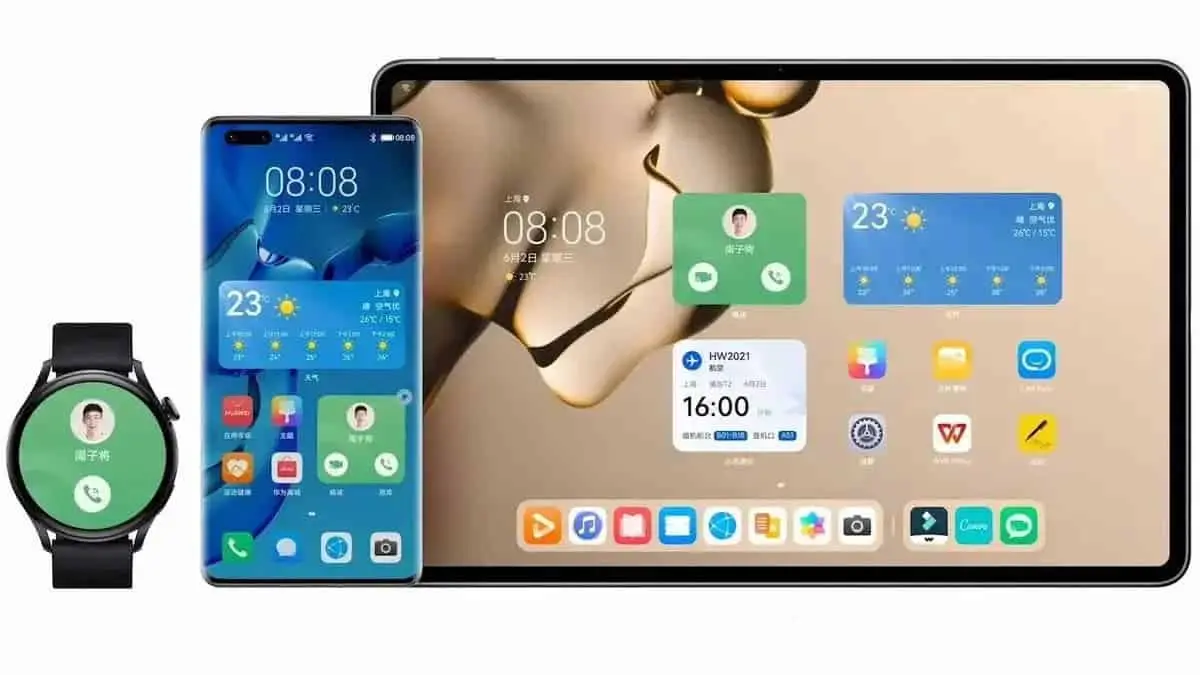
HarmonyOS: What You Need To Know [2024 Guide]
Is HarmonyOS 4 a viable alternative to Android? Here’s everything you need to know about Huawei’s open-source mobile operating system, ...
Android vs iOS: Is One Actually Better? Let’s…
Unsure between Android and iOS for your next smartphone? This beginner’s guide highlights the key differences of each platform so you can dec...

Deep Fusion Explained: The iPhone Camera’s Secret Weapon…
What is Deep Fusion? Here’s everything you need to know about Apple’s powerful camera software and why it is so important inside modern...
Cinematic Mode on iPhone Explained: What It Is…
The iPhone 13 Pro’s new feature lets you shoot movies like Hollywood pros. Apple’s new iPhone 13 series has officially been unveiled. The new i...
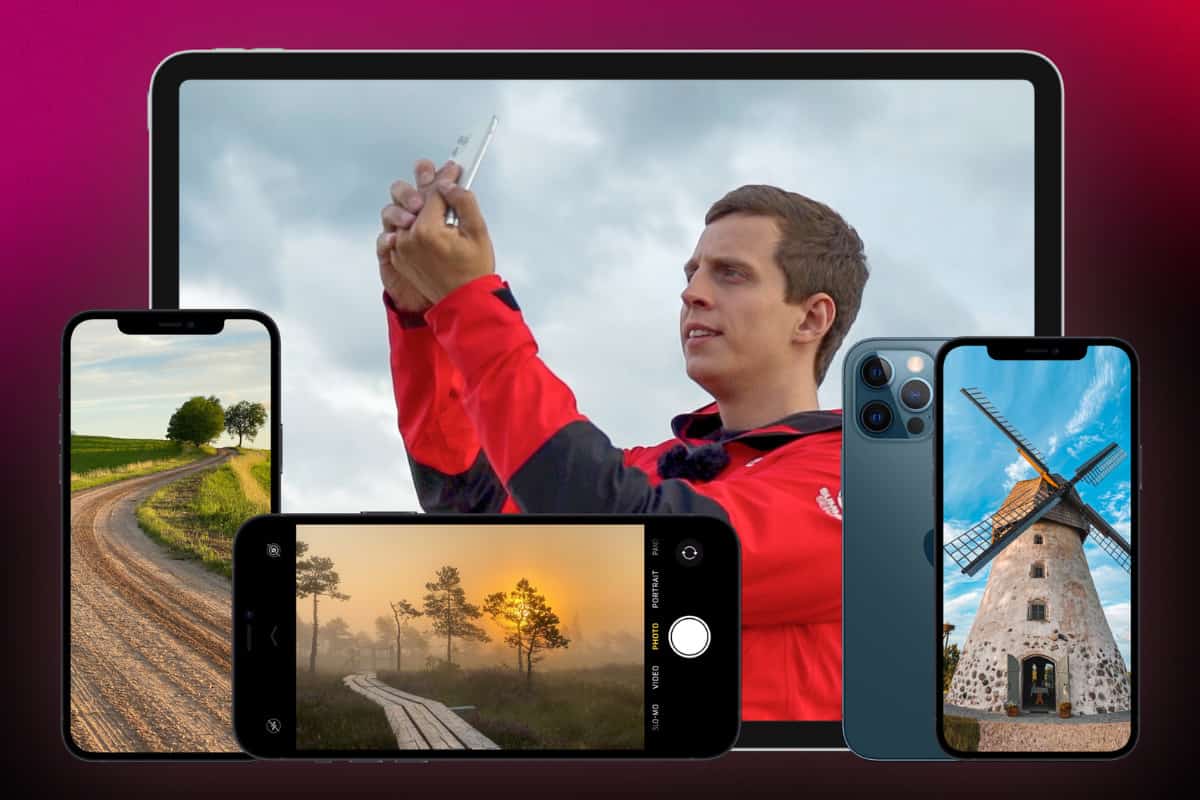
iPhone Photo Academy Review: Is It Any Good?
I recently signed-up to the well known iPhone Photo Academy course with a view to quickly improving my iPhone photography skills. Was it any good? ...
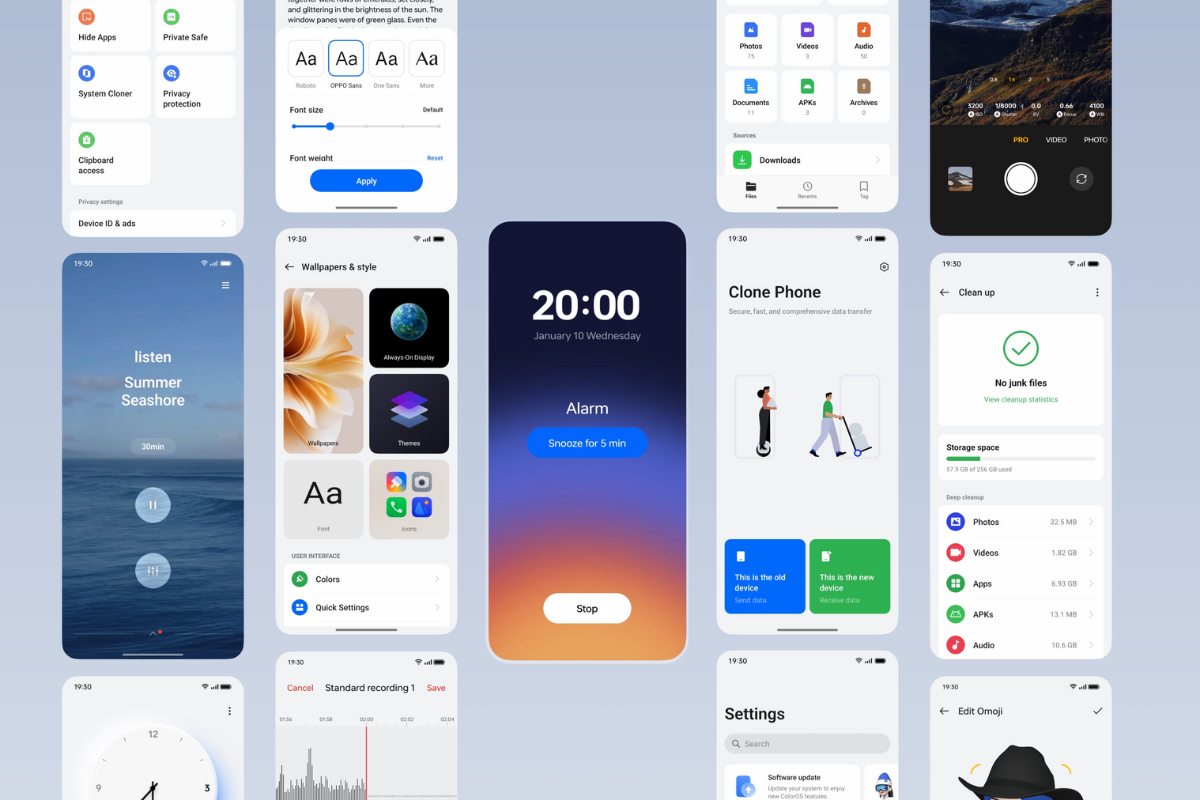
13 Exciting New Features Inside ColorOS 14
ColorOS 14 is now in the process of rolling out, with more phones set to get the update in March – here’s all of its best new features… ...
11 Exciting New Features Inside VIVO’s FunTouch OS…
VIVO’s FunTouch OS 14 update is now out in the wild but what’s new inside this update? Here’s a 12 of FunTouch OS 14’s best new feature...
12 Exciting Features Inside Samsung’s One UI 6.1…
Older Samsung Galaxy phones will soon get access to One UI 6.1 later this month. Here’s a run down of its best new features and capabilities… I...
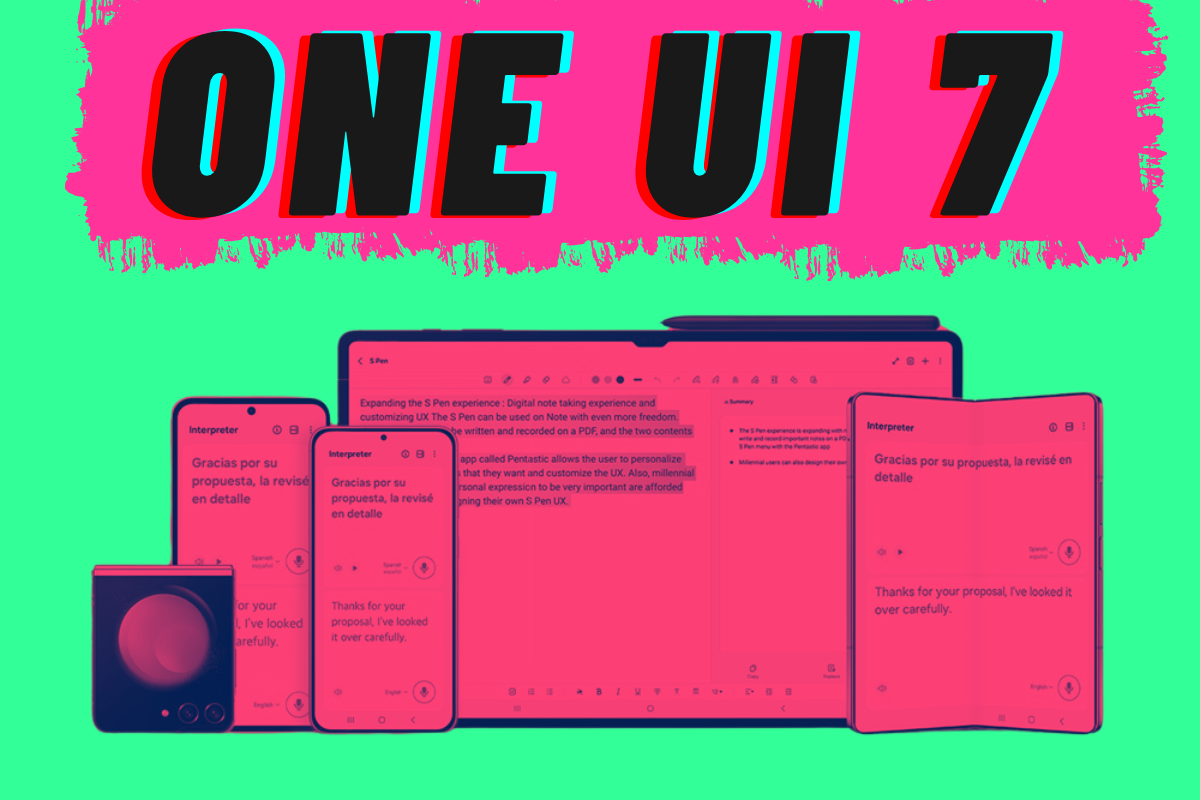
Samsung One UI 7: Everything You Need To…
Samsung will begin rolling out its One UI 6.1 update at the end of March, bringing a host of new features – including Galaxy AI – to its lega...
iPhones In Order: Every iPhone EVER Released [2007…
Here’s a complete list of ALL of Apple’s iPhones in order by year, including ALL the changes, their respective release dates, and more&...
Google Tensor Processor: A Brief History & The…
Here’s everything you need to know about Google’s Tensor processor, including its history, future iterations (G3 and G4), what it can do, a...
The 6 Best Android Phones Under £300 (That…
Need a new phone? Don’t want to spend a lot of money? No problem – here’s the 6 best Android phones under £300 you can buy right now Ba...
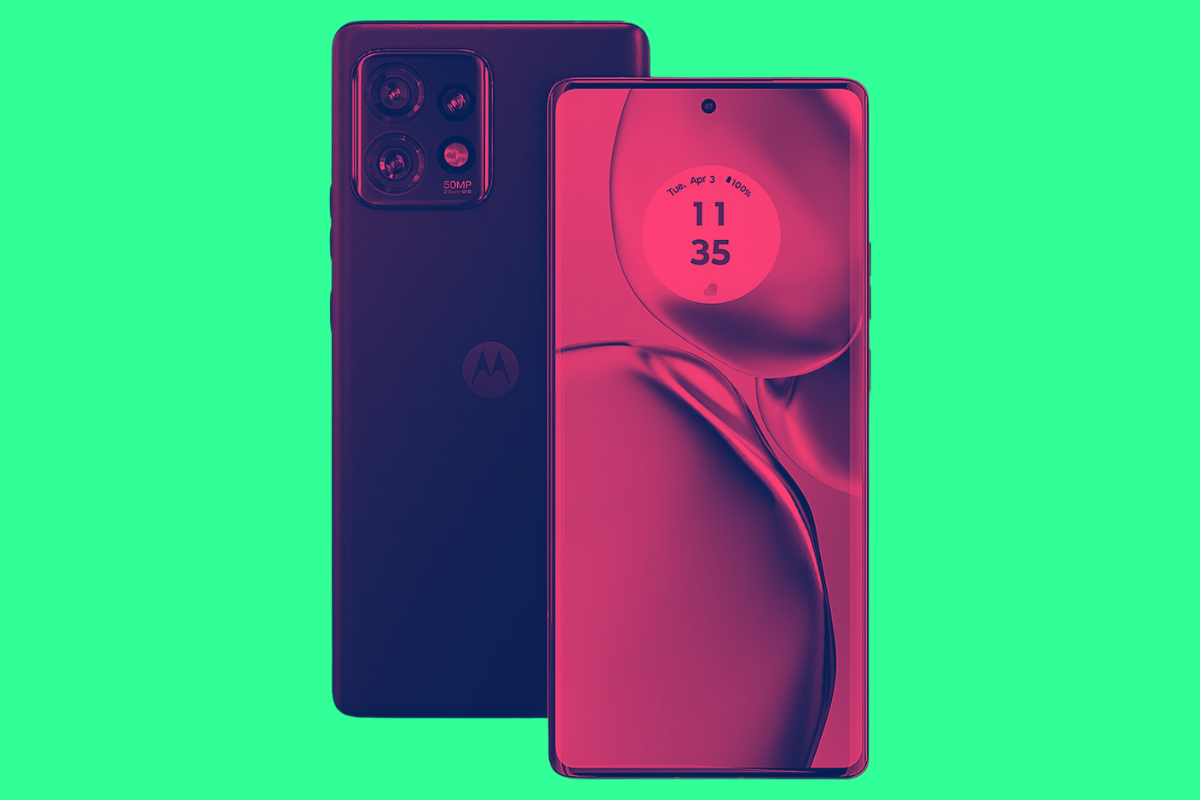
Motorola Update Policy: How Many Updates Will Your…
Motorola occupies itself a nice slice of the US market with its robust and well price Android phones, but how many updates do its phones get? Let?...
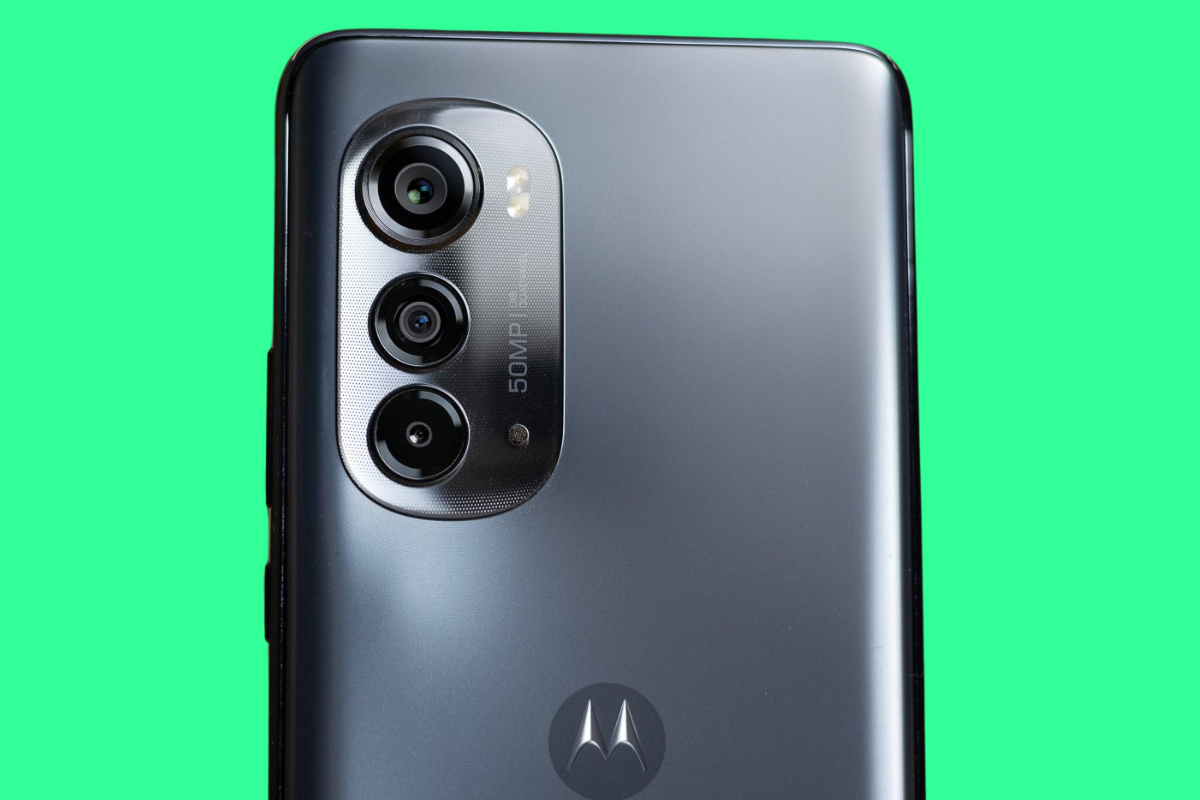
Is The Motorola Edge 2022 Waterproof? What You…
The Motorola Edge 2022 is an affordable smartphone and its specs are decent. But were corners cut when it comes to its durability and water resista...
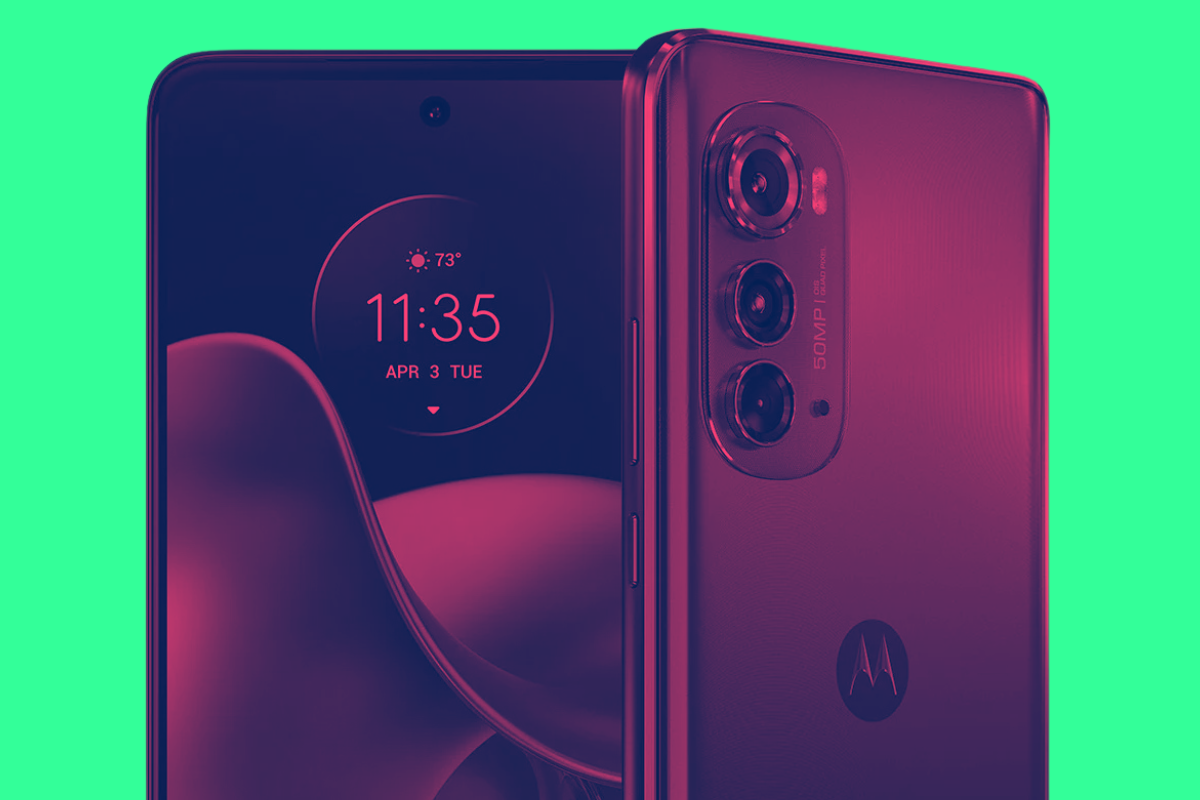
Motorola Edge 2022: Is It Worth Buying In…
Here’s everything you need to know about the Motorola Edge 2022 before buying one, including its PROS and CONS, camera tech, and overall perf...
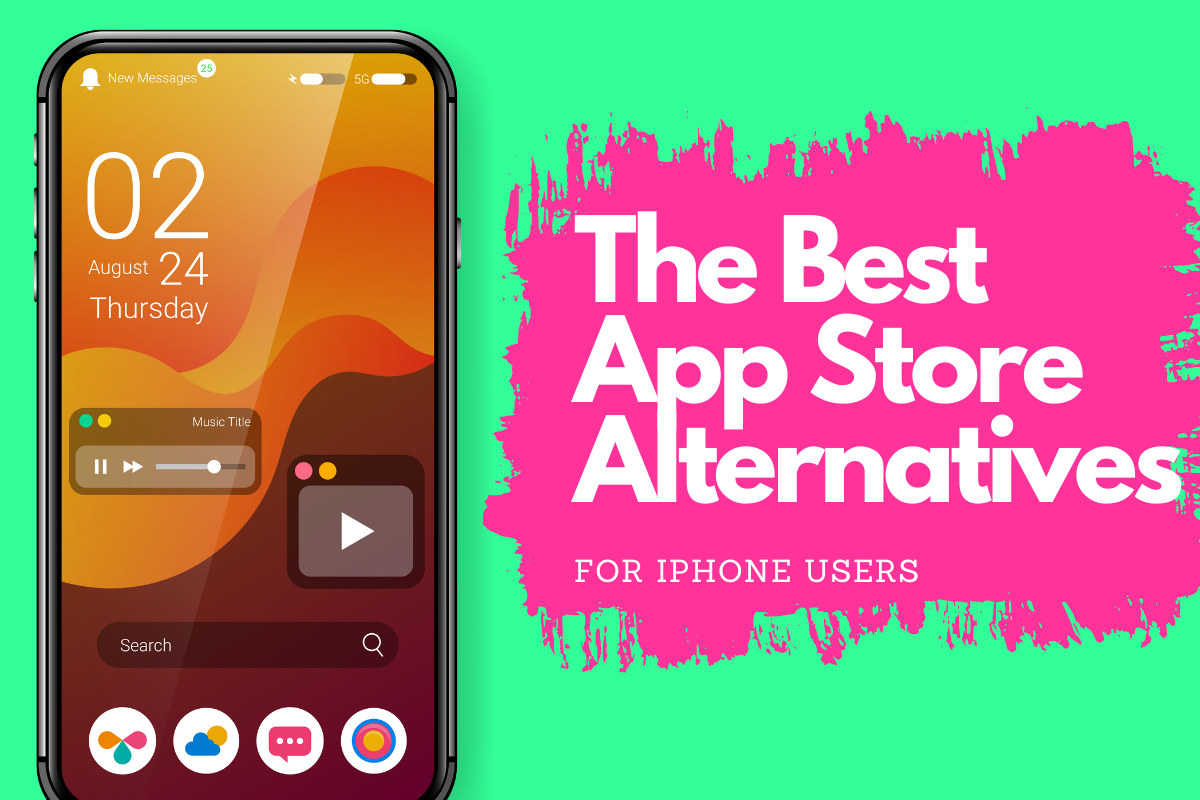
The 7 Best App Store Alternatives For iPhone
iOS 17.4 will allow iPhone users in the EU to sideload applications. But what are the best alternatives to Apple’s App Store for applications and...
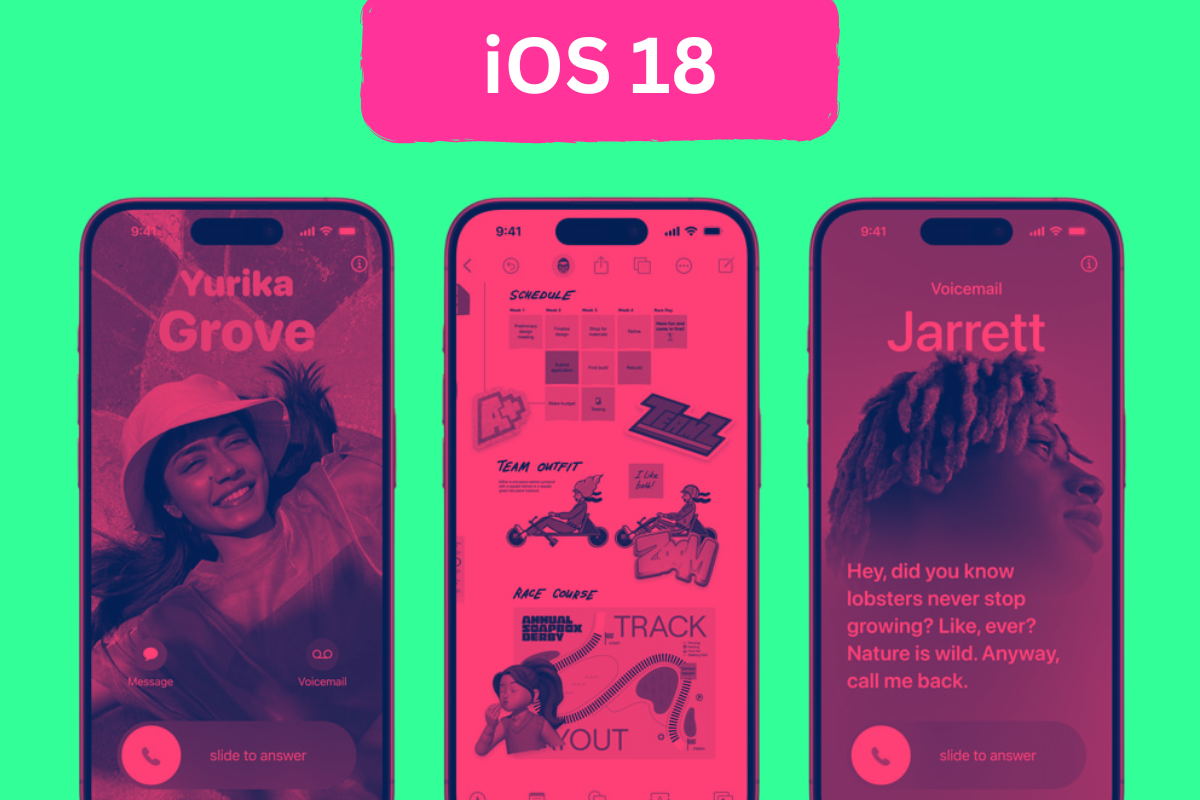
iOS 18: What You Need To Know [Leaks,…
Apple is expected to release iOS 18 in 2024. Rumors say it could be the most significant upgrade to iOS in years… Apple is expected to release iO...
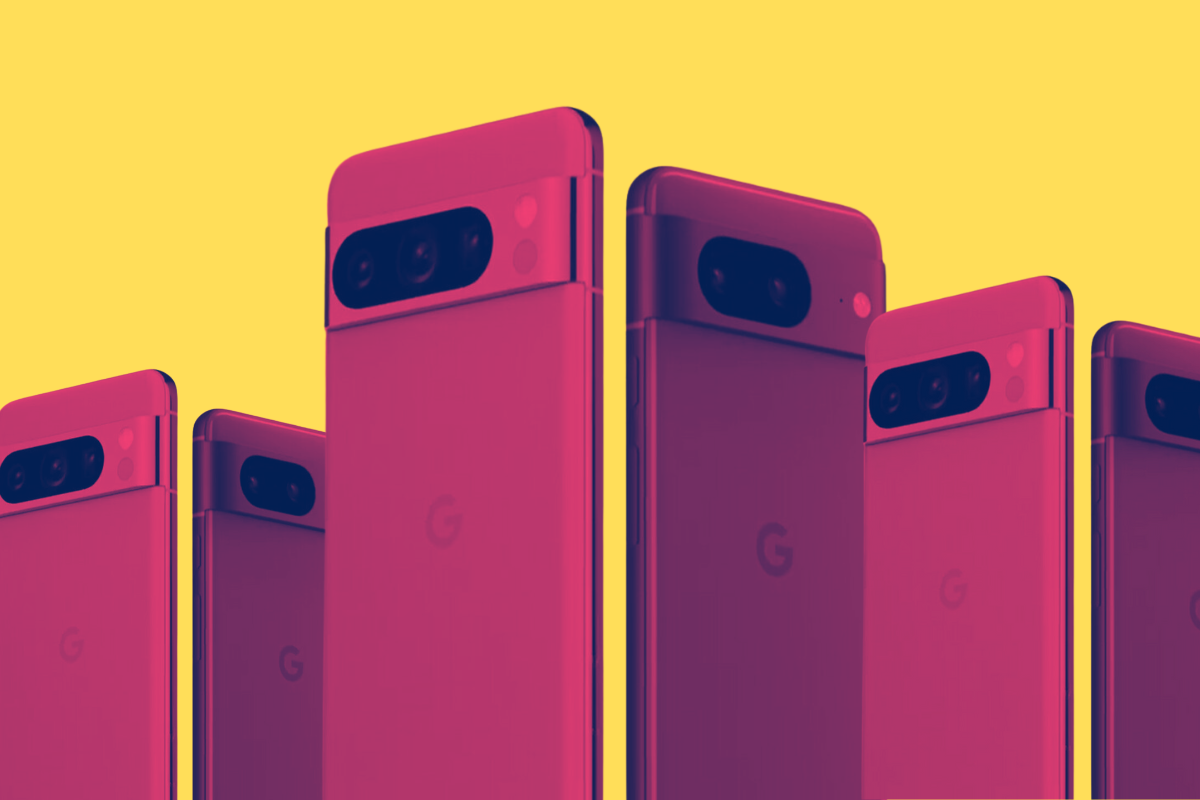
Best Google Pixel Phone: What To Get &…
Google’s Pixel phones are having a bit of a renaissance moment right now. But what is the best Google Pixel phone you can buy right now? Here’s...
Android OS Updates: How Many Android Updates Will…
If you’re running an Android phone, you’re probably wondering how many Android updates it will get, right? Here’s a comparison of all major A...
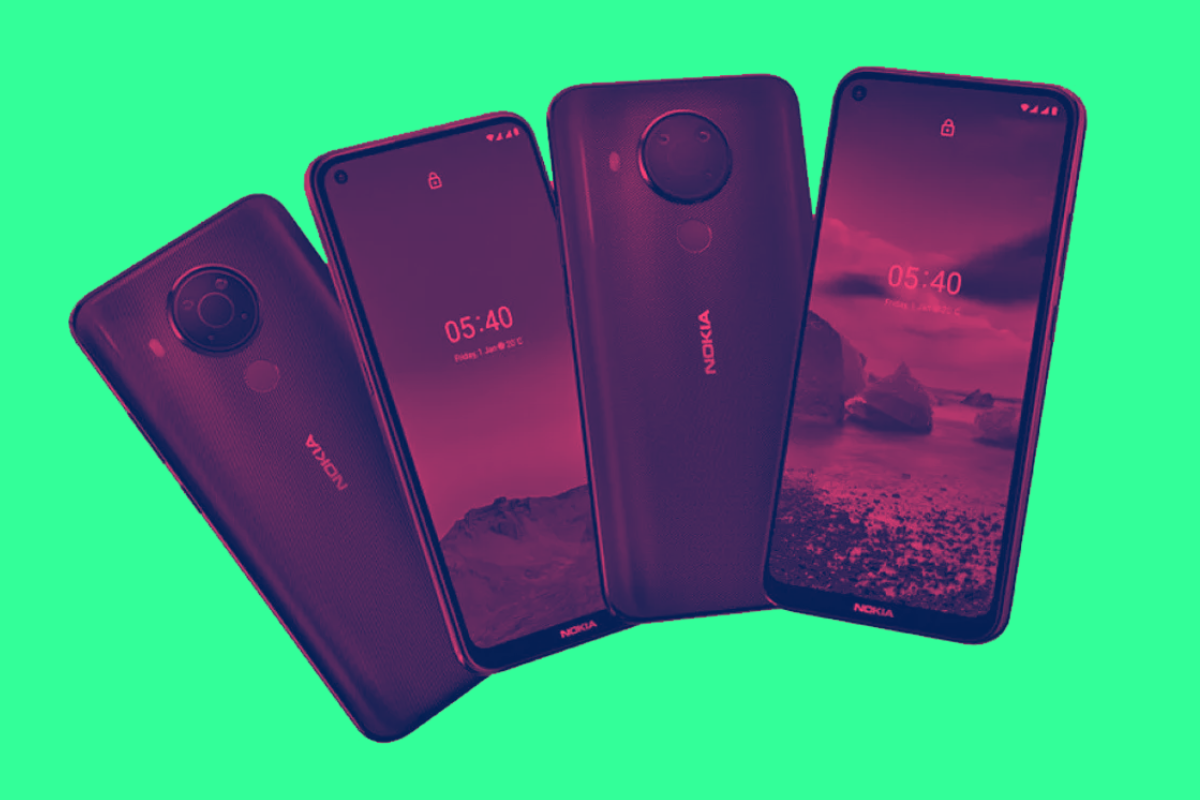
Nokia Update Policy: How Many Android Updates Do…
Nokia makes a slew of affordable Android phones. But how well does it support them? Here’s everything you need to know about how many Android...
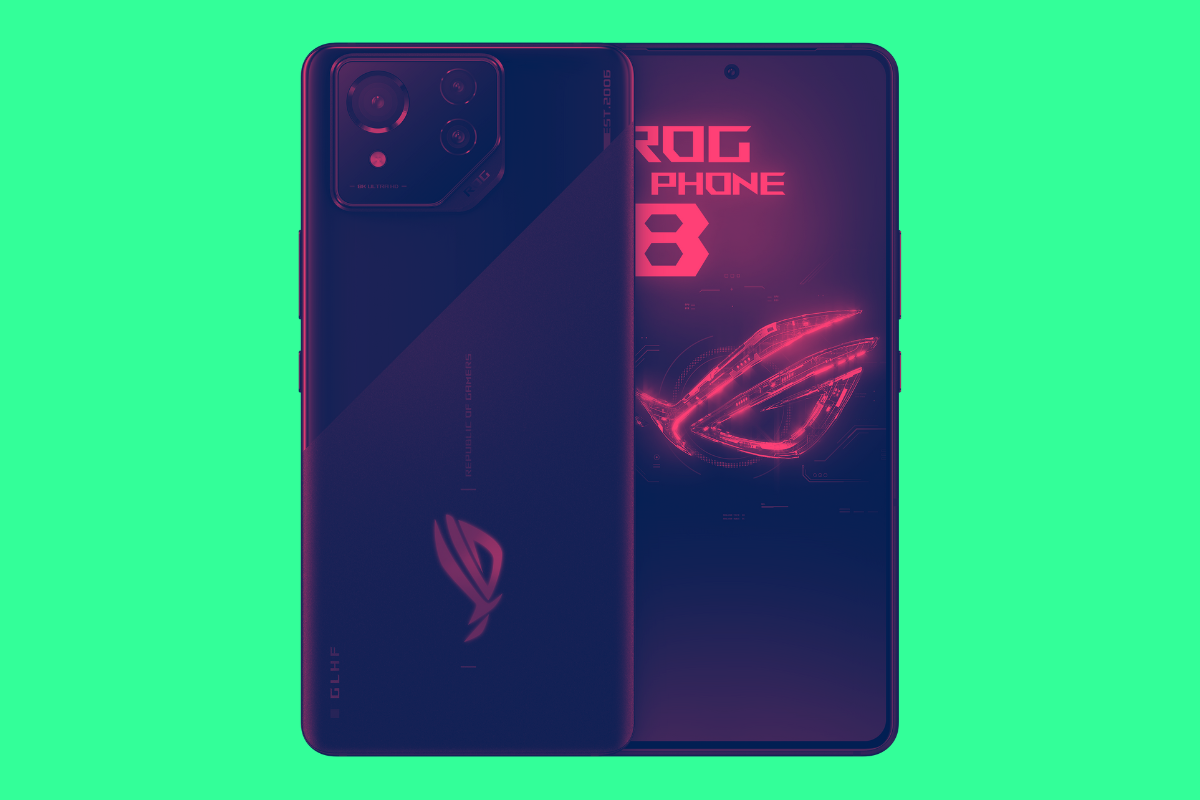
ASUS Update Policy: How Many Android Updates Do…
ASUS isn’t the biggest phone brand in the world but it does have plenty of loyal fans. But what’s the deal with ASUS phone and Android updates ...
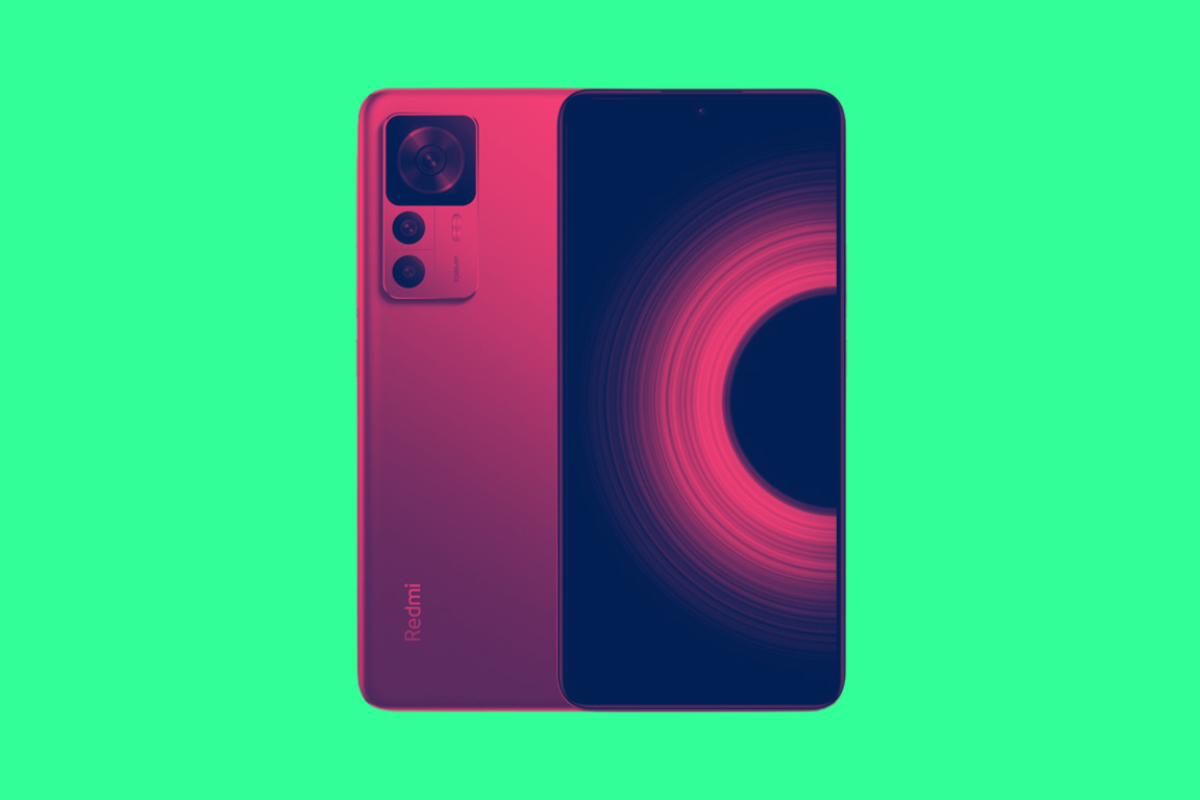
Xiaomi Update Policy: How Many Android OS Updates…
Xiaomi makes A LOT of phones and this makes things tricky when it comes to Android OS updates. So, how long do Xiaomi phones get updates for? Here?...
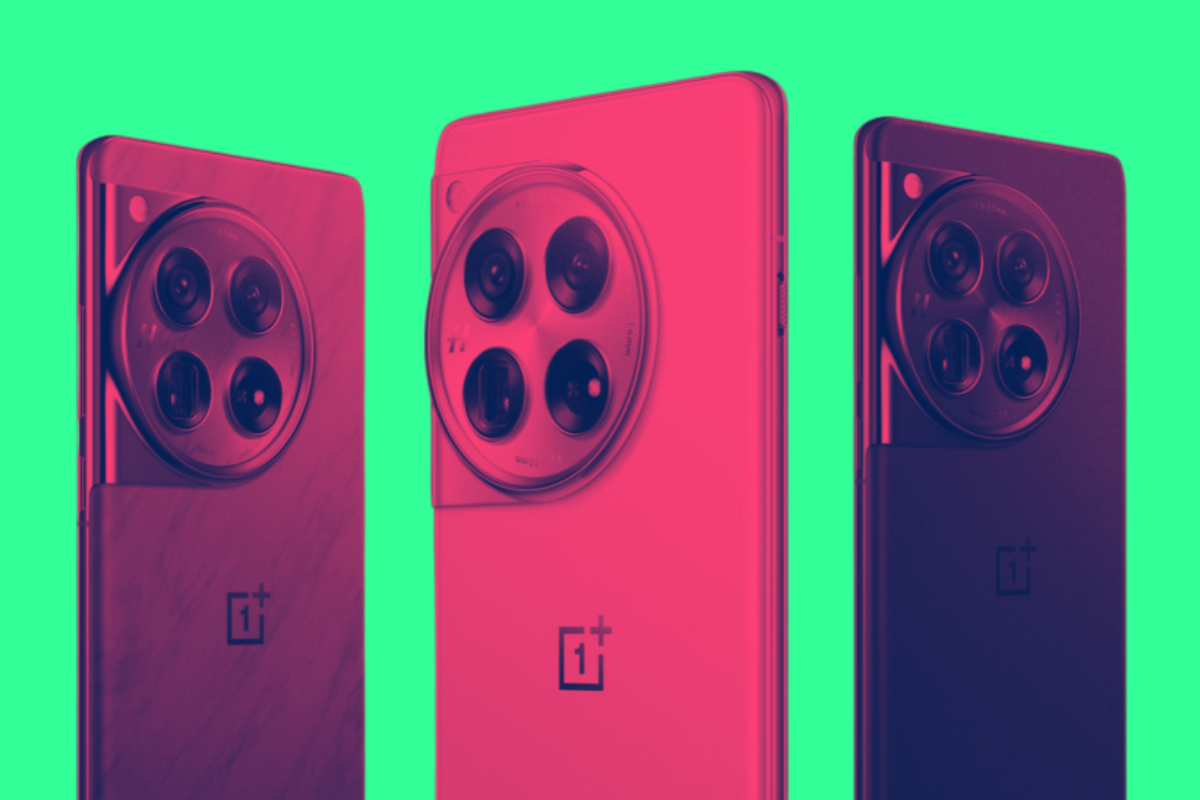
OnePlus Update Policy: How Many Android OS Updates…
OnePlus has updated its Android OS update policy multiple times over the years. Here’s everything you need to know about OnePlus’ current updat...
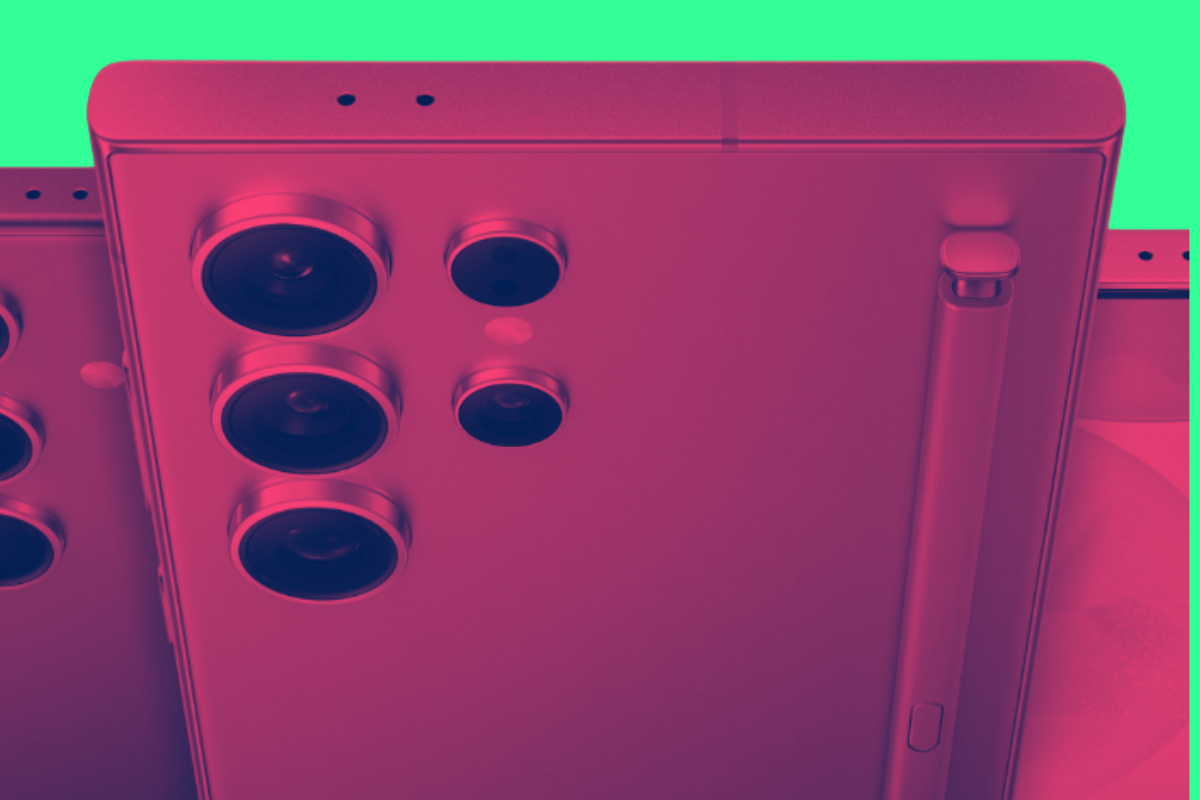
Best Samsung Galaxy S24 Ultra Alternatives: 3 Equally…
The Samsung Galaxy S24 Ultra is a killer phone, no one’s doubting that. But what are some equally good alternatives to buy right now? Here’s my...

OnePlus 12: Everything You Need To Know Before…
Thinking about buying the OnePlus 12? Here’s a breakdown of everything you need to know about OnePlus’ 2024 flagship phone With the release of ...
Are Xiaomi Phones Safe? You’ll Definitely Want To…
Xiaomi, a Chinese phone brand, makes cheap, high-spec Android phones which are becoming very popular. But are Xiaomi phones safe, or should you be ...
What Is An ICCID Number? A Quick Definition…
What is an ICCID number? How do they work? And do you need to know your SIM card’s ICCID number? Here’s what you need to know… The term ICCID...

Only These 5 Phones Get 7 Years of…
If you’re looking for an Android phone that gets the best support and the most Android updates, you have just five phones to choose from in 2024?...
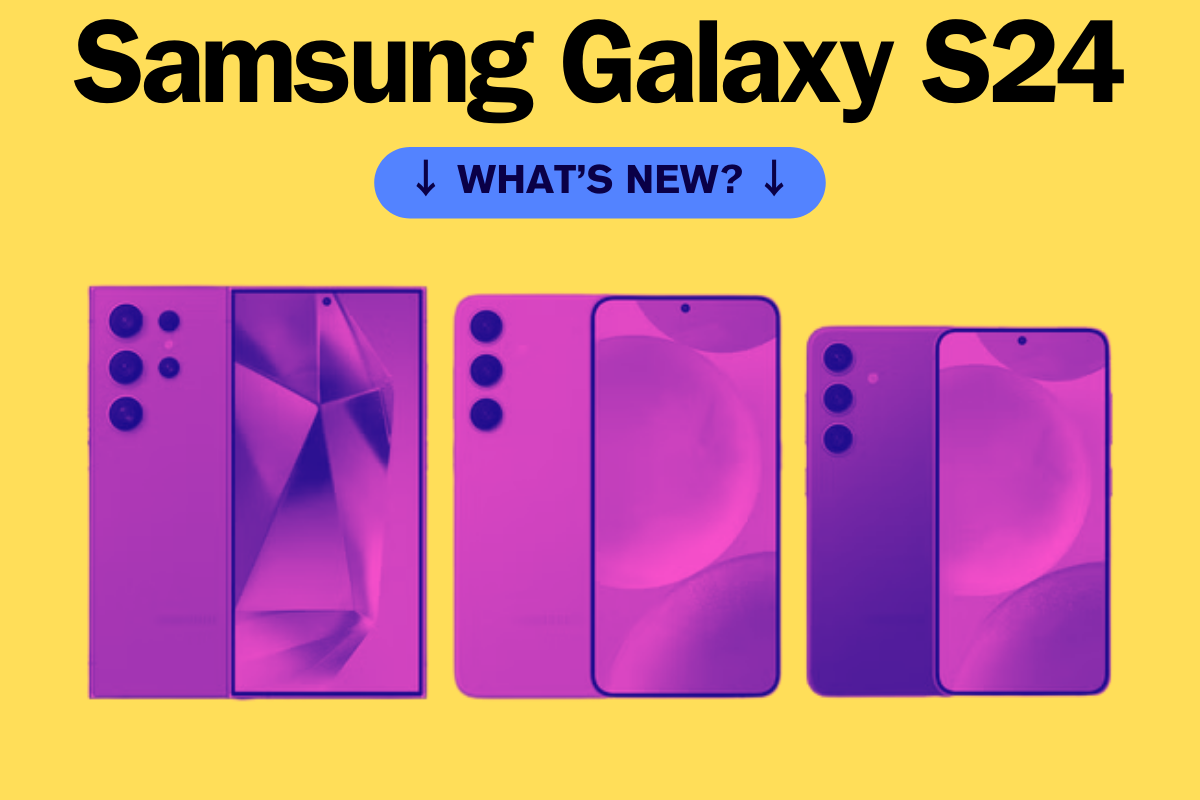
Samsung Galaxy S24 vs S24 Plus vs S24…
Let’s compare and contrast the specs of Samsung’s Galaxy S24, S24 Plus, and S24 Ultra to see which model delivers the most bang for your buck?...
Which iPhones Have U1 & U2 Chip? [2024…
Which of Apple’s iPhones have the U1 or U2 chip inside them? Here’s a complete overview of all the phones that come with either chip as well as...
Which iPhones Have LiDAR? [2024 Guide]
LiDAR is an advanced sensor technology that lets phones do new things. But which iPhones have LiDAR and which don’t? Let’s find out… Some...
Which iPhones No Longer Get iOS Updates? [2024…
Many of Apple’s iPhones still run the latest software. However, older models may no longer get iOS updates. Here’s which iPhones no lon...
Vivo Update Policy: How Many Years Will Vivo…
Vivo still lags behind other smartphone brands regarding software support, but it still provides up to four years of support! But four years of sup...
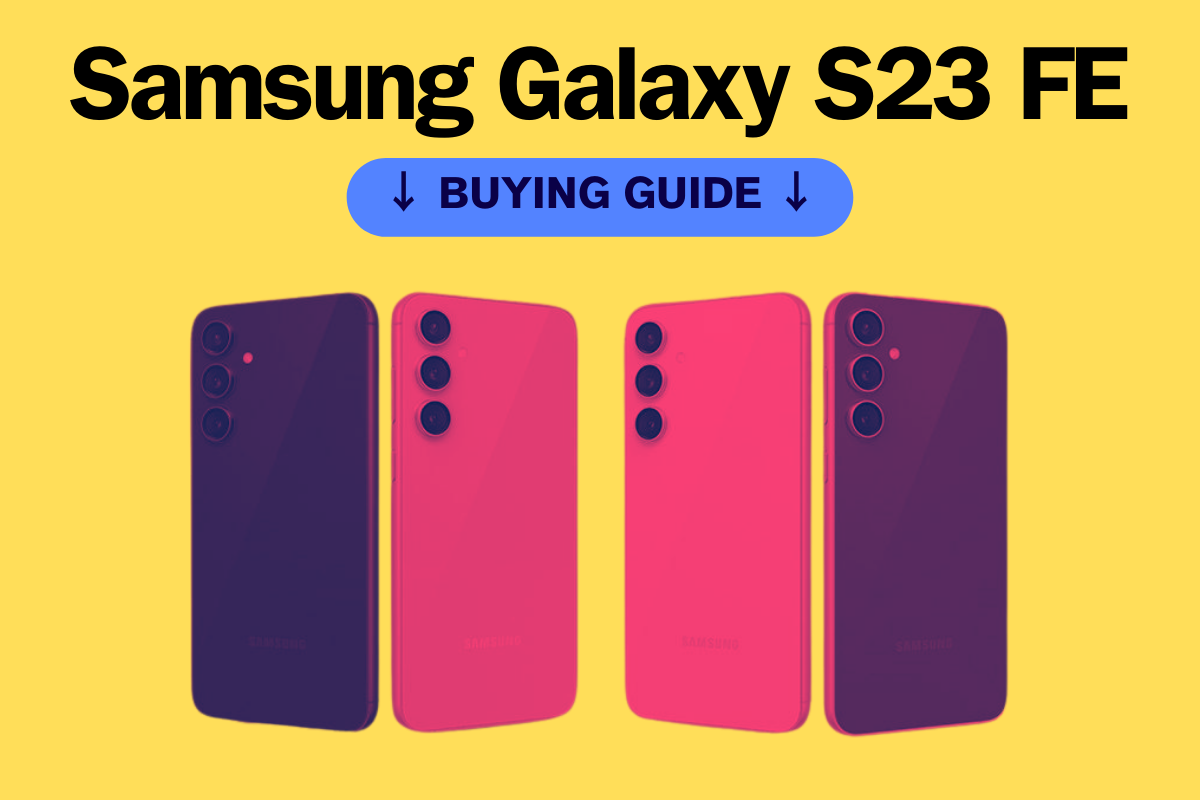
Samsung Galaxy S23 FE Buying Guide: What You…
Should you buy the Samsung Galaxy S23 FE or are you going to be better off looking elsewhere? Here’s everything you need to know about the Ga...
Best Samsung Galaxy S23 Ultra Alternative [2023 Guide]
Here’s a quick overview of the some of the best Samsung Galaxy S23 Ultra alternatives you can buy right now… The Samsung Galaxy S23 Ultra is a ...
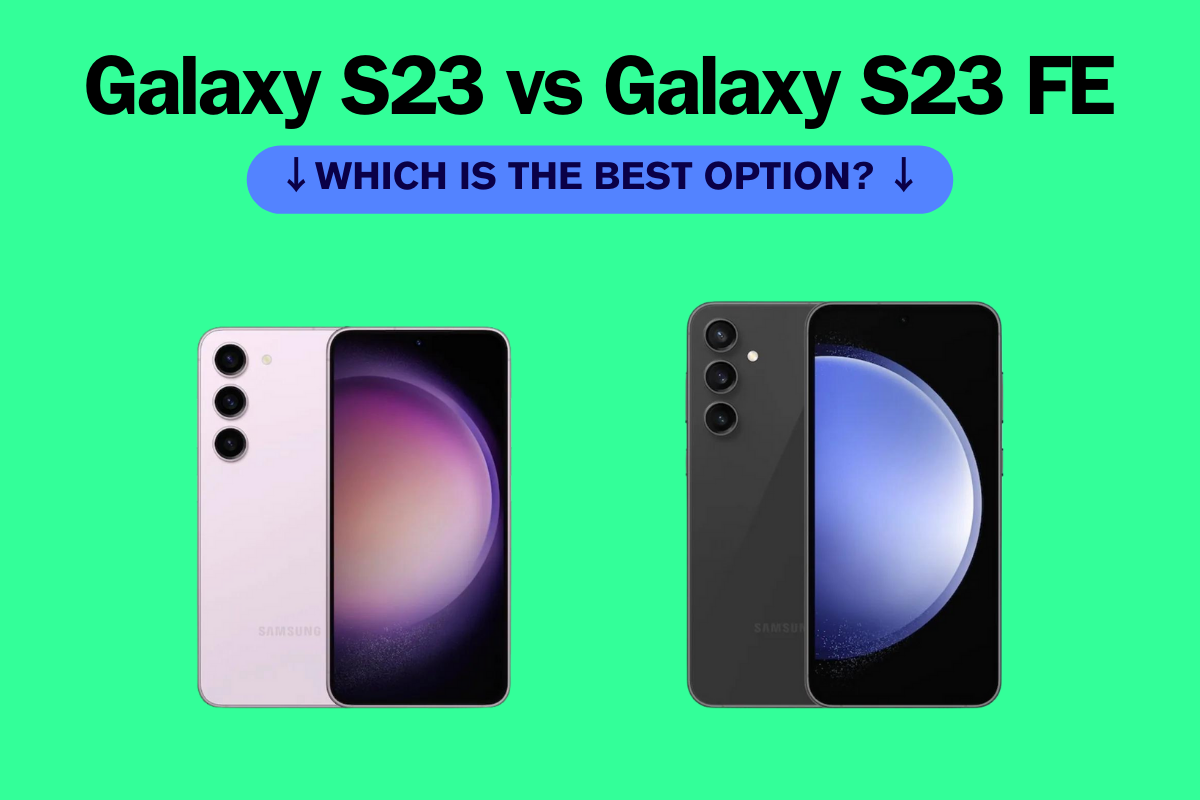
Samsung Galaxy S23 vs Galaxy S23 FE: What’s…
How does the Samsung Galaxy S23 compare to the Samsung Galaxy S23 FE? Let’s compare the specs and hardware to find out which is best… When ...
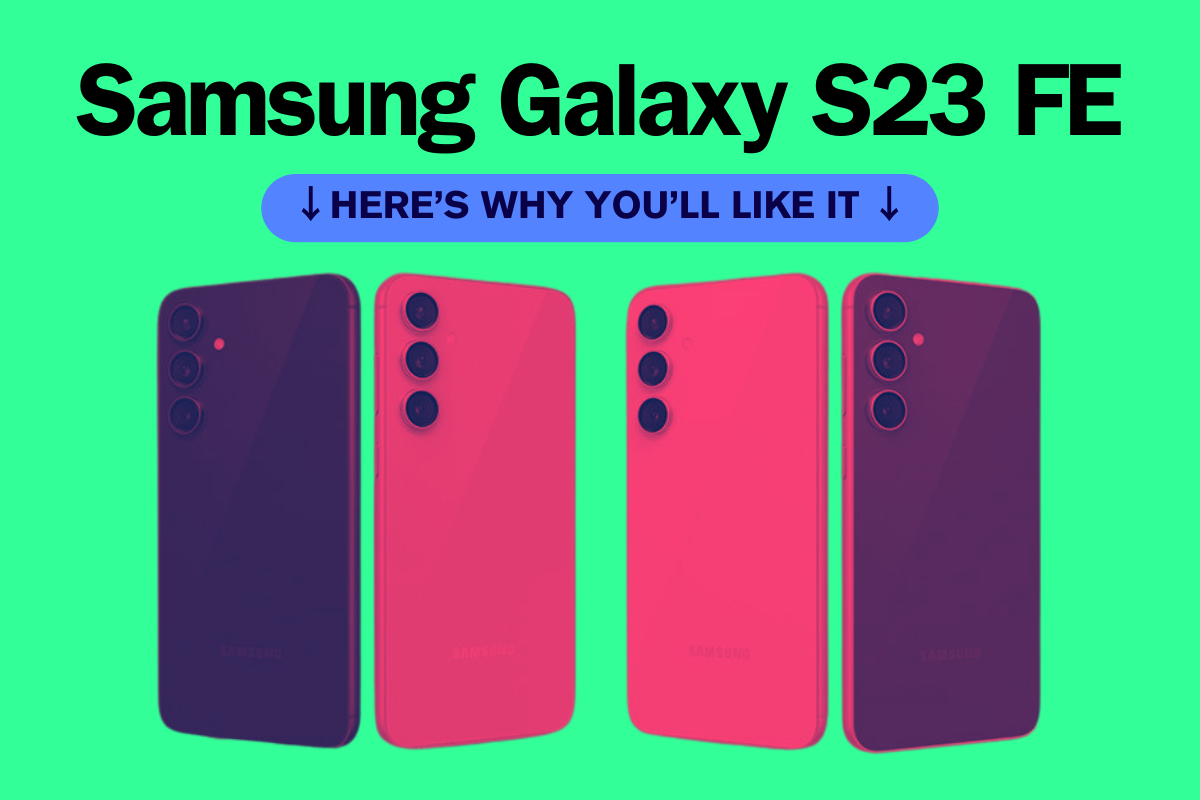
6 Reasons To Buy The Samsung Galaxy S23…
The Samsung Galaxy S23 FE is a killer smartphone that packs in a myriad of tech and features. Is it worth a buy in 2024? Hell yes… If you don’t...

Which Samsung Phone Has The BIGGEST Screen? A…
Which Samsung phone has the biggest screen? Here’s what you need to know as well as some additional bits and bobs. When it comes to big screens o...
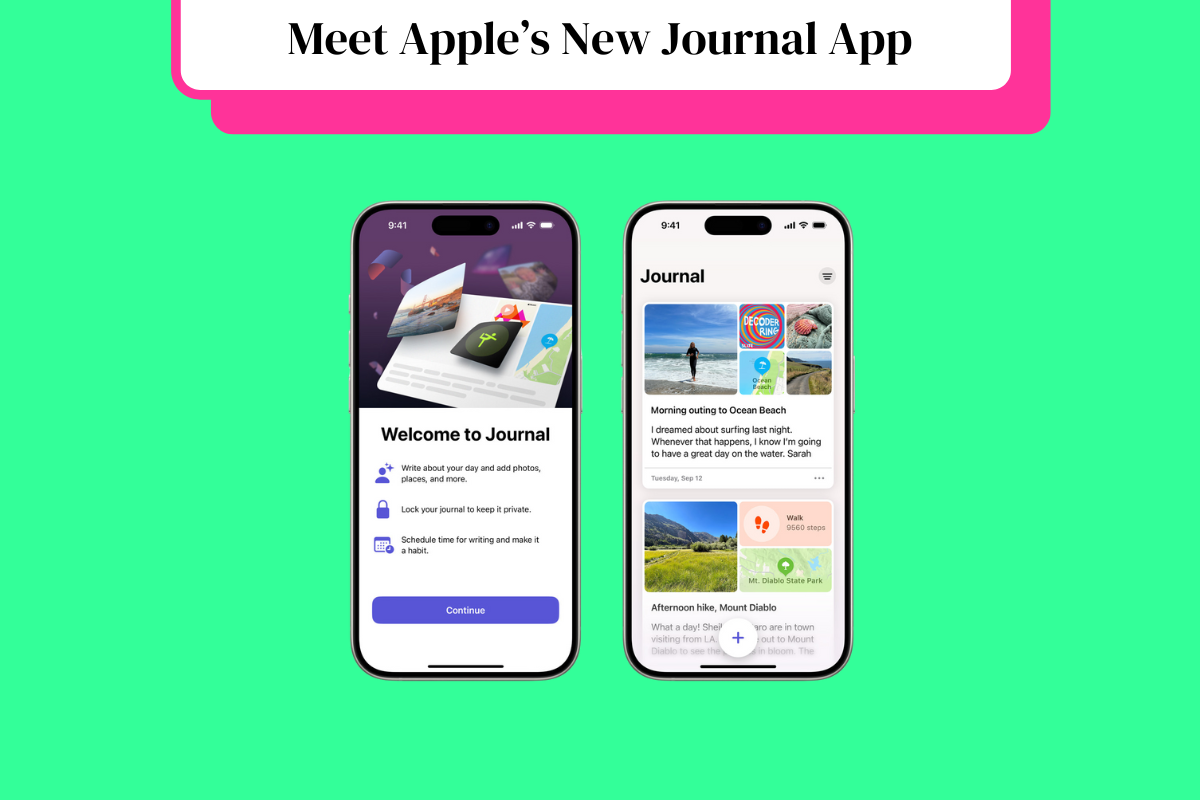
Apple’s Journal App Might Just Drink Day One’s…
Apple has a new app inside iOS 17.2. It’s called Journal and as the name suggests, it is all about journaling. But what does this mean for po...
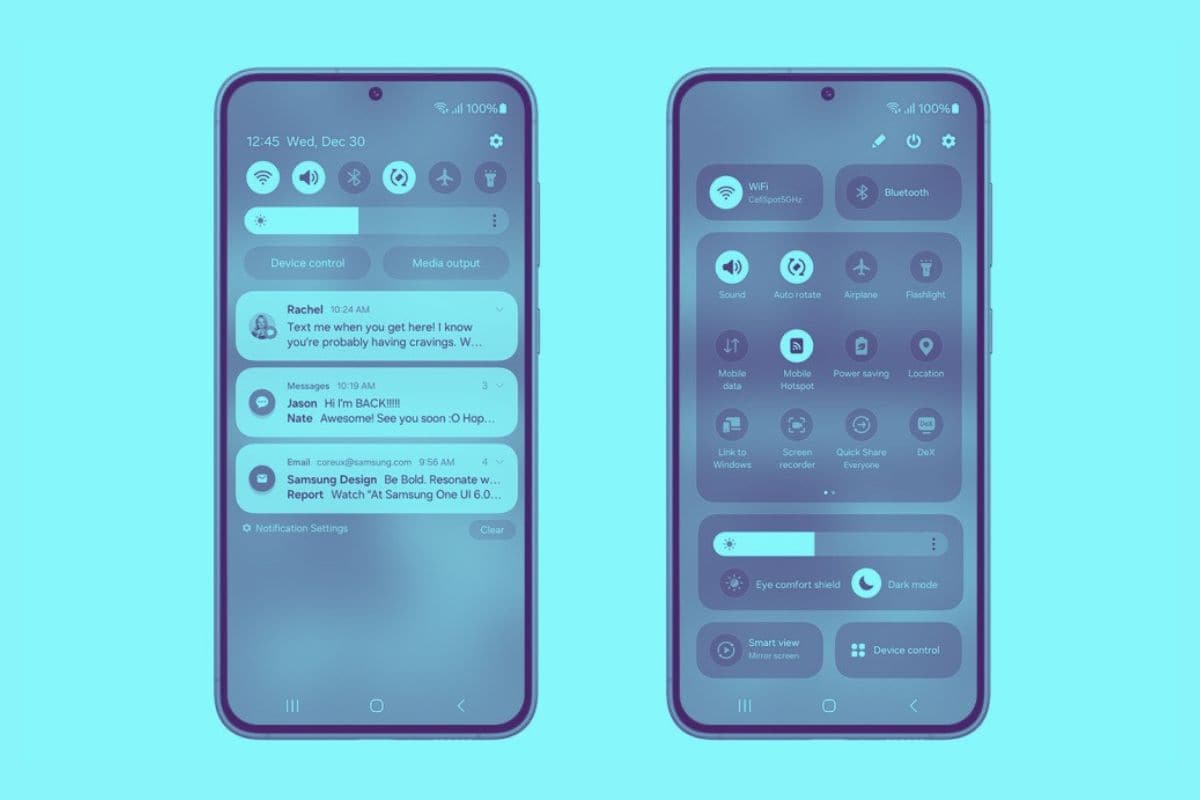
One UI 6 Release Date: Will Your Samsung…
Samsung’s One UI 6, the next iteration of its custom Android skin, is now rolling out. But when exactly will your phone get it? Here’s ...
One UI 6.1 Leak Confirms RAFT of AI…
Samsung’s next big update to its One UI software – One UI 6.1 – has leaked and it is jam-packed with AI features and new capabi...
Best Refurbished iPhone Deals [December 2023]
Here’s a complete breakdown of the best refurbished iPhone deals right now based on data from multiple refurbished iPhone retailers The iPhone 15...
Should You Buy A Pixel Phone? A “PROS…
If you use Android and want the best software support possible, a Google Pixel phone could just be what the doctor ordered. But should you buy a Pi...
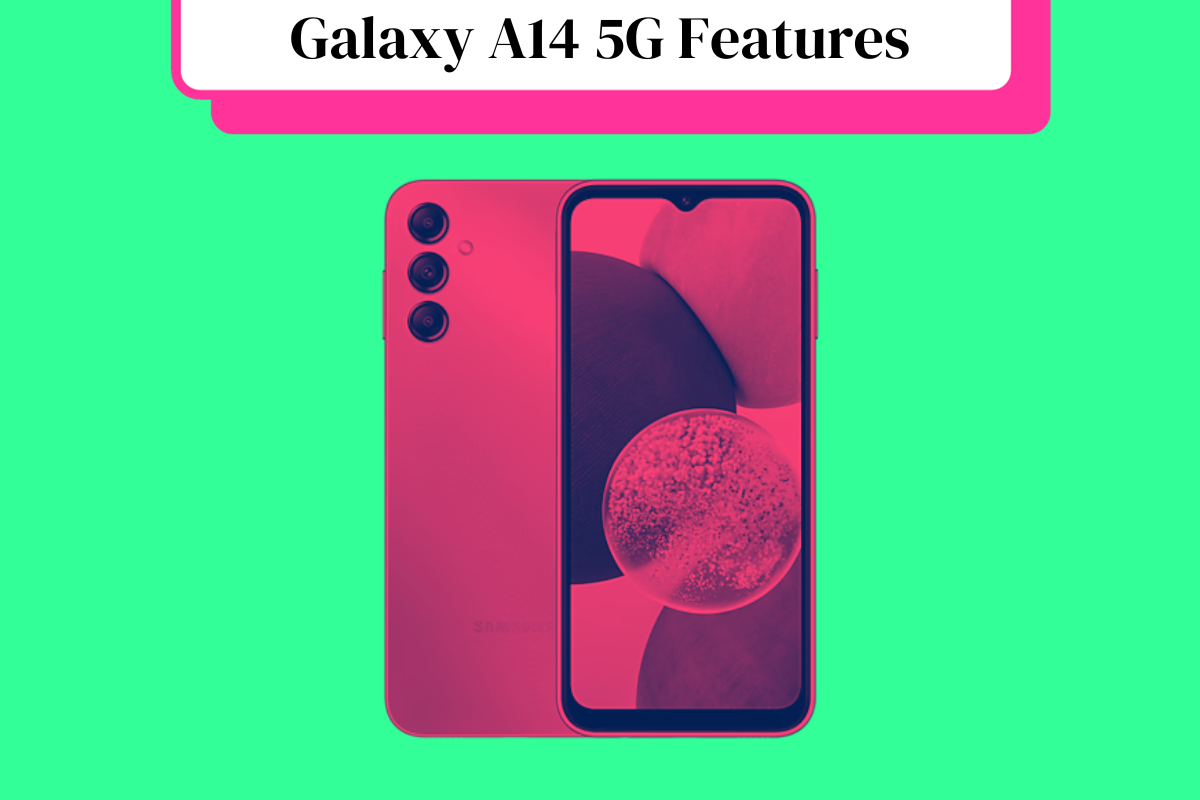
Samsung Galaxy A14 Features: Is It Any Good?…
It’s cheap, it’s good-looking, and it comes with 5G. What’s not to like? Here’s the low-down on the Samsung Galaxy A14̵...
Is the Samsung Galaxy A14 Waterproof? What You…
The Samsung Galaxy A14 is a very popular, very affordable Android phone. But is it waterproof? Here’s what you need to know before you buy on...
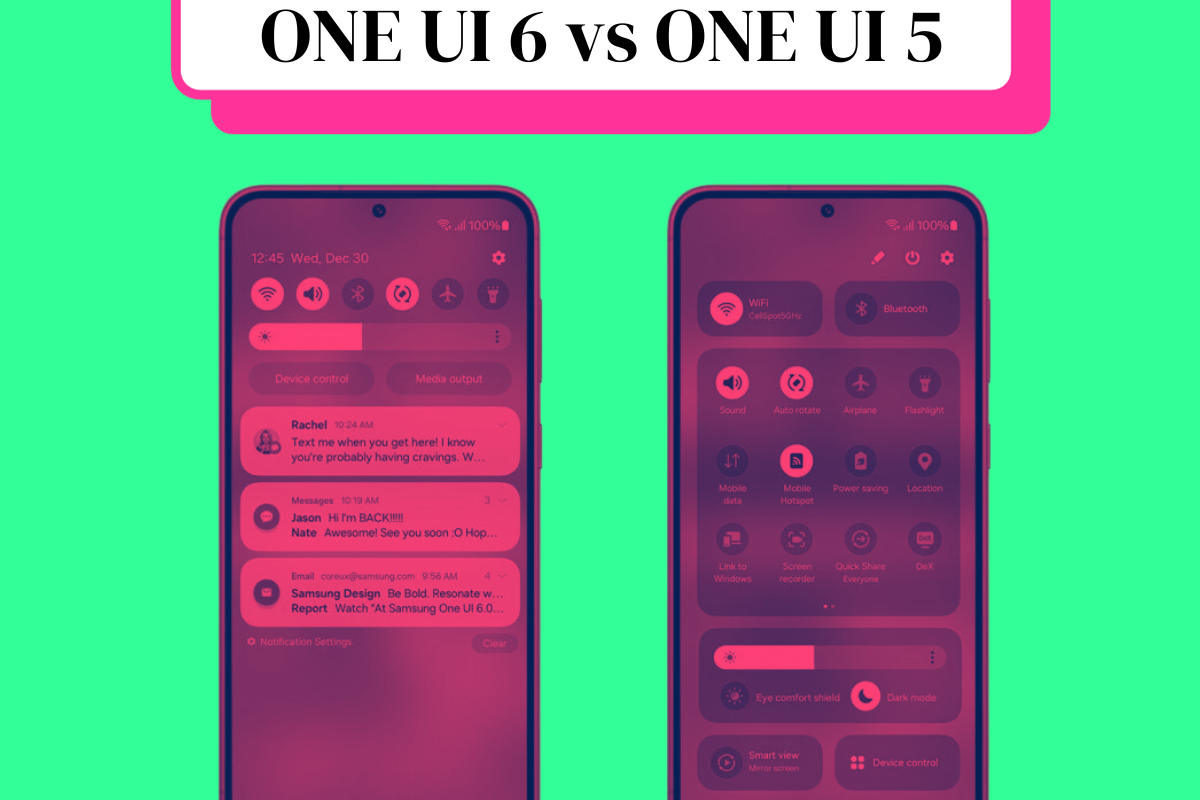
One UI 6 vs One UI 5: What’s…
Samsung’s One UI 6 is the latest version of the company’s Android skin, which was released in 2023. It comes with several new features ...
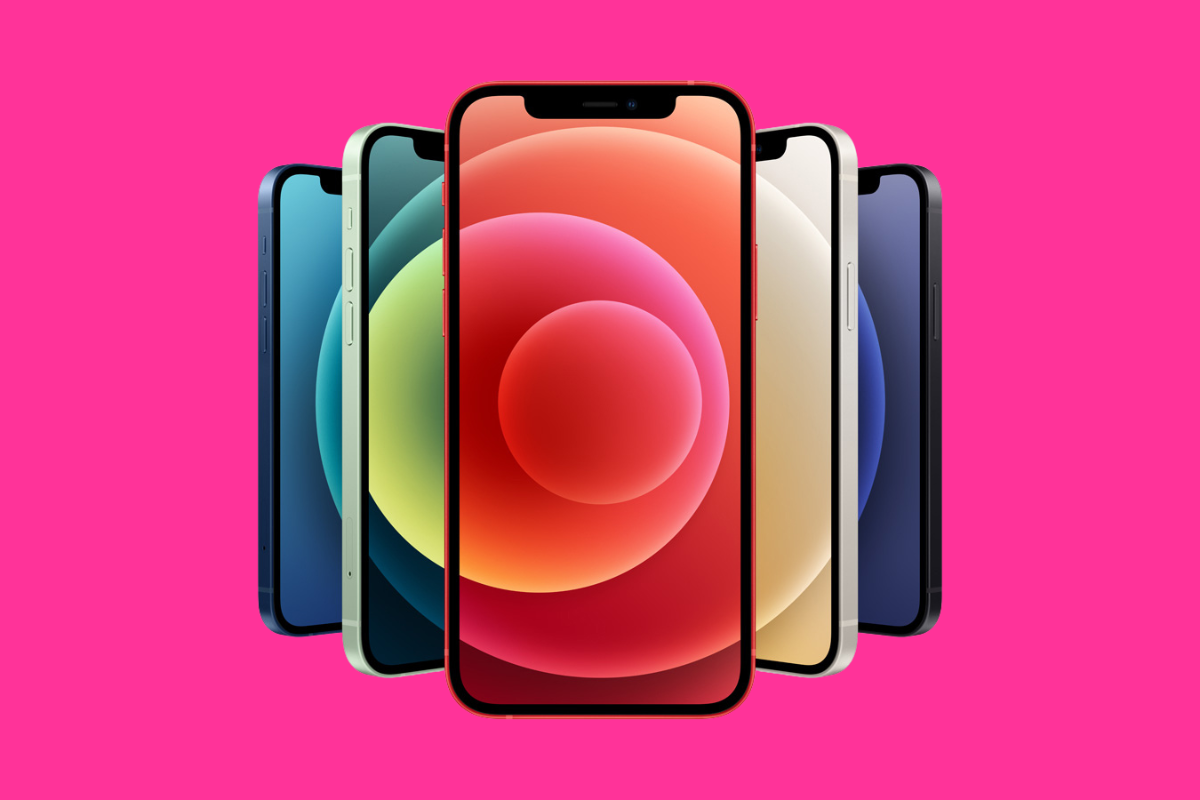
Why You Should (And Shouldn’t) Buy An iPhone…
Navigating the world of smartphones can be a daunting task, especially when considering refurbished models like the iPhone 12. As a user who’...
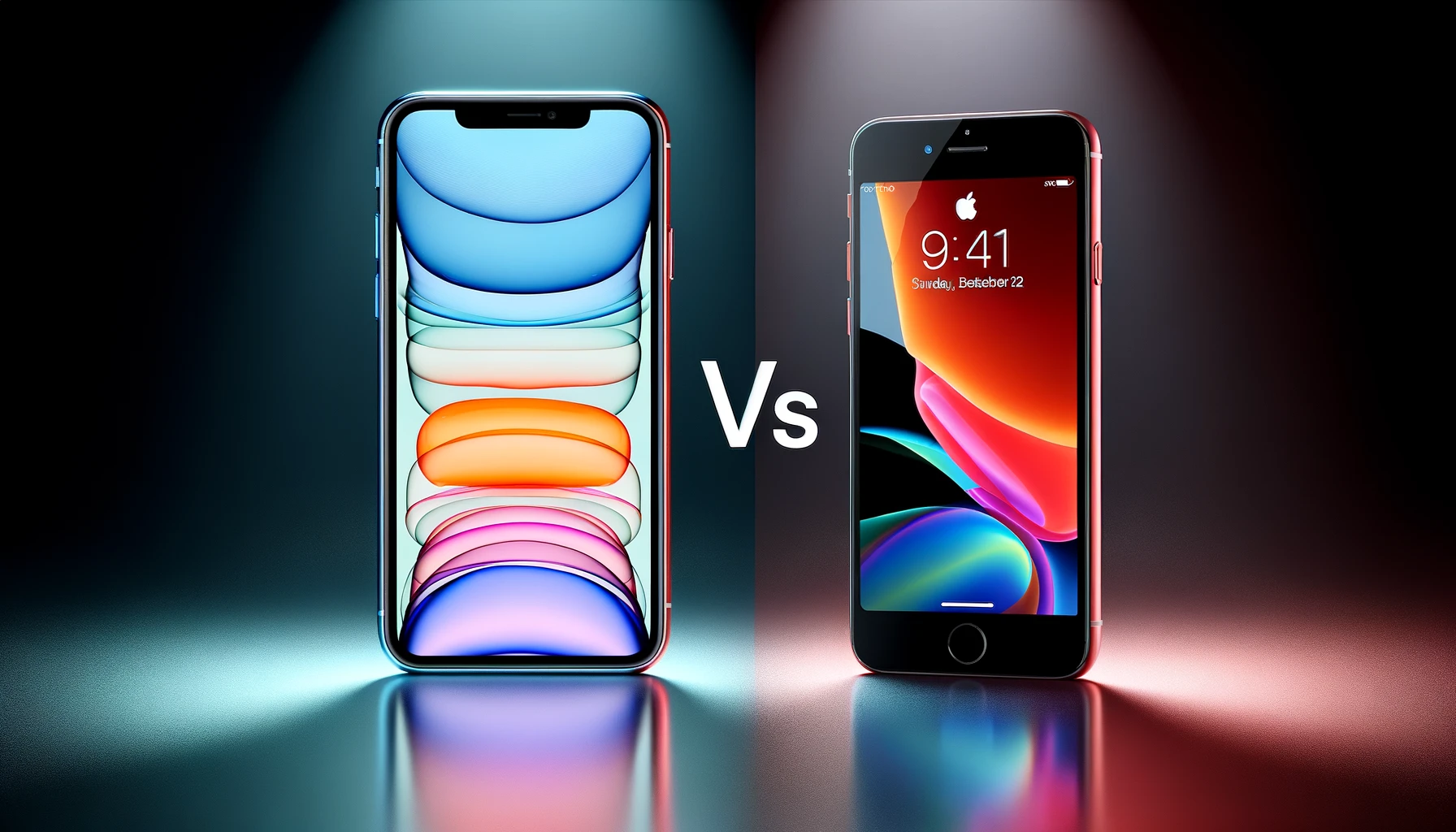
iPhone 11 vs iPhone 8: Are They Now…
The iPhone 11 is obviously a better phone that the iPhone 8, it is newer and packs in better features and specs. But are either of these phones wor...
What is MIUI? The Ultimate Beginner’s Guide [2023]
Xiaomi is coming with a new standalone OS called HyperOS. But what is MIUI – Xiaomi’s custom Android skin used in all Xiaomi phones till 20...

Samsung Galaxy S22 Ultra RAM Specs: How Much…
Get the facts on the Samsung Galaxy S22 Ultra’s RAM specifications and why they matter for your daily tech needs. Curious about how it stacks...
This is The Best Samsung Galaxy S23 Ultra…
When it comes to keeping your Samsung Galaxy S23 Ultra powered up, not just any charger will do. You need something that’s fast, reliable, an...
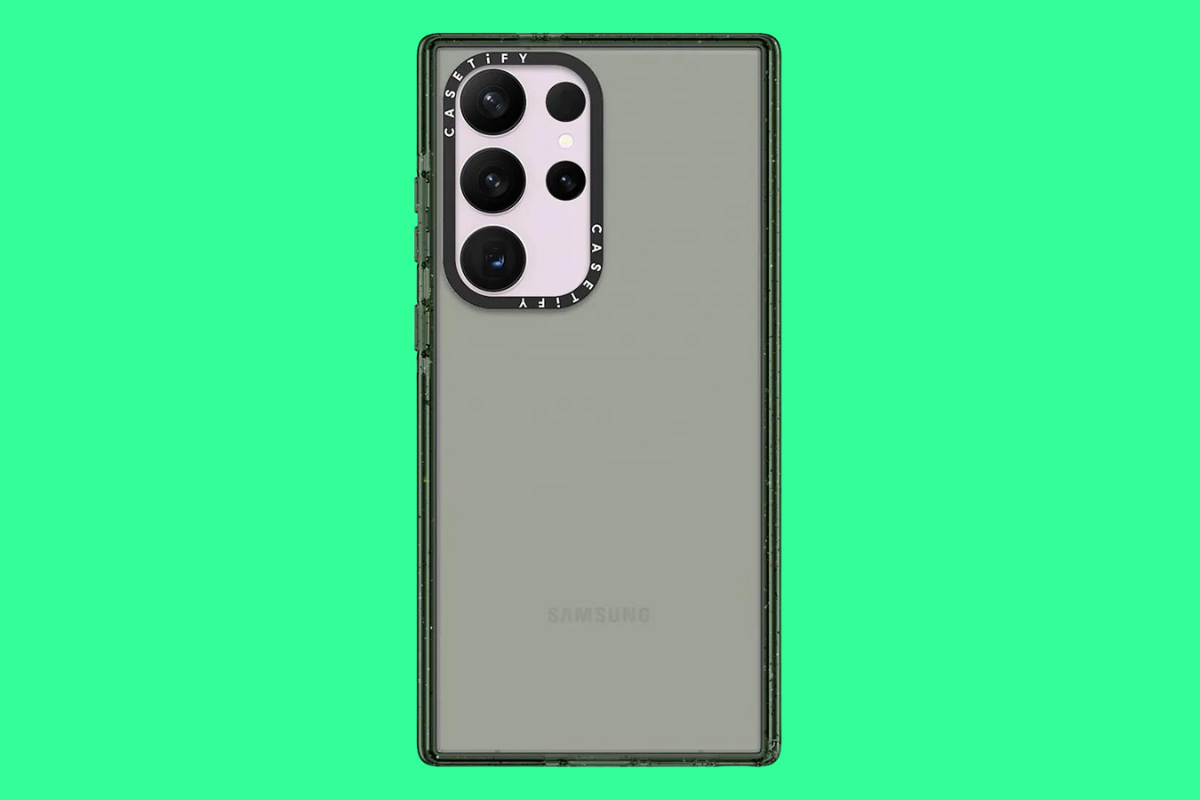
Best Samsung Galaxy S23 Ultra Accessories: The Essentials…
You got a Samsung Galaxy S23 Ultra. Now you need some accessories to compliment it – stuff like a case, headphones, and a charger. Here’s ...
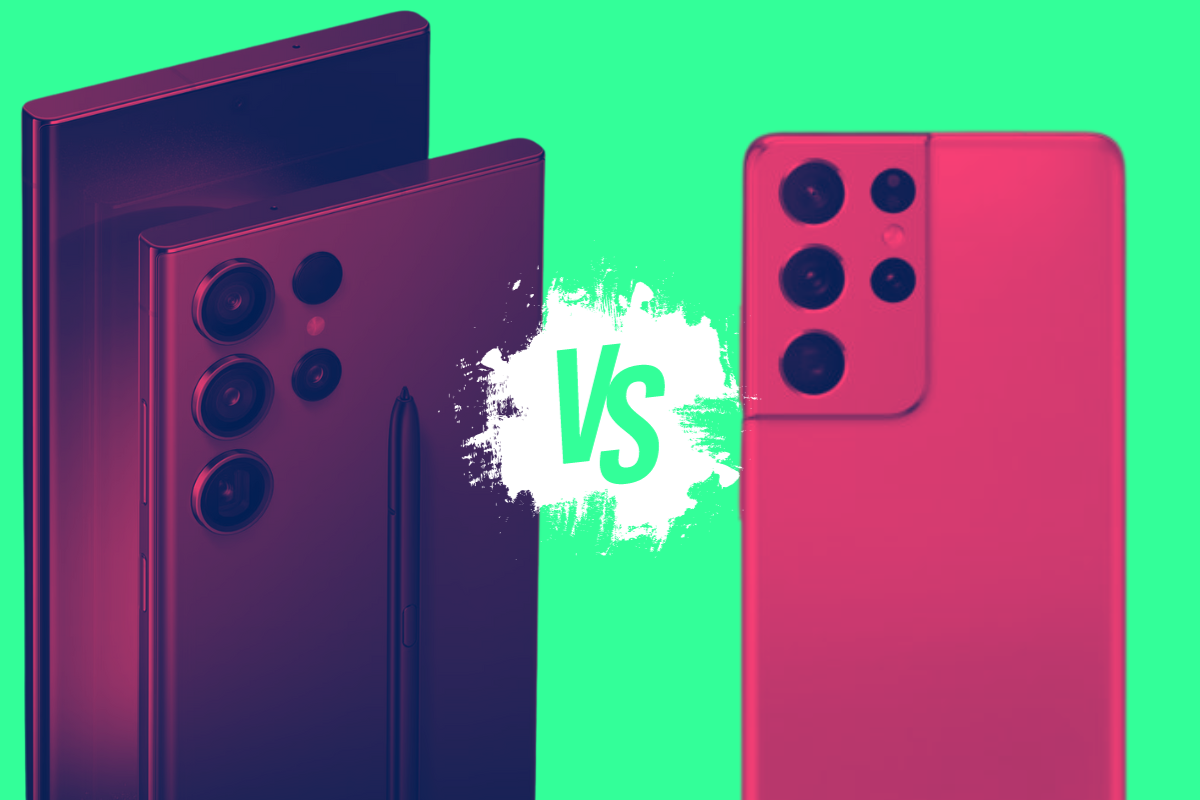
Samsung Galaxy S21 Ultra vs Samsung Galaxy S23…
You’re here because you’re torn between two titans: the Samsung Galaxy S21 Ultra and the Samsung Galaxy S23 Ultra. Both are powerhouses...